Affinity supports Photoshop’s .PSD format for users who need compatibility with the industry-standard file type, even though Affinity’s native format is .af to ensure smooth collaboration and file sharing.
Saving a .psd image after editing using Export can be a little cumbersome this tutorial will show you how to set .psd format as a default in Save.
In this tutorial we will cover the following:
Basic Operations ⇑
If you open a .psd file in Affinity, edit it and then use File > Save to save the file, Affinity will save it in it’s native format .af.
To save it as a .psd file you will need to select File > Export > Export then PSD and one of the Presets: preserve accuracy, preserve editability or Final Cut Pro X.
This achieves the result but the process can be unwieldy especially when dealing with a number of files open at one time.
Pano2VR Use Case ⇑
After shooting and stitching a 360˚ panorama, the nadir, the area directly below the camera, is often obscured by the tripod or missing data, which can look like a black hole or distorted spot in the final panorama. (figure #1)
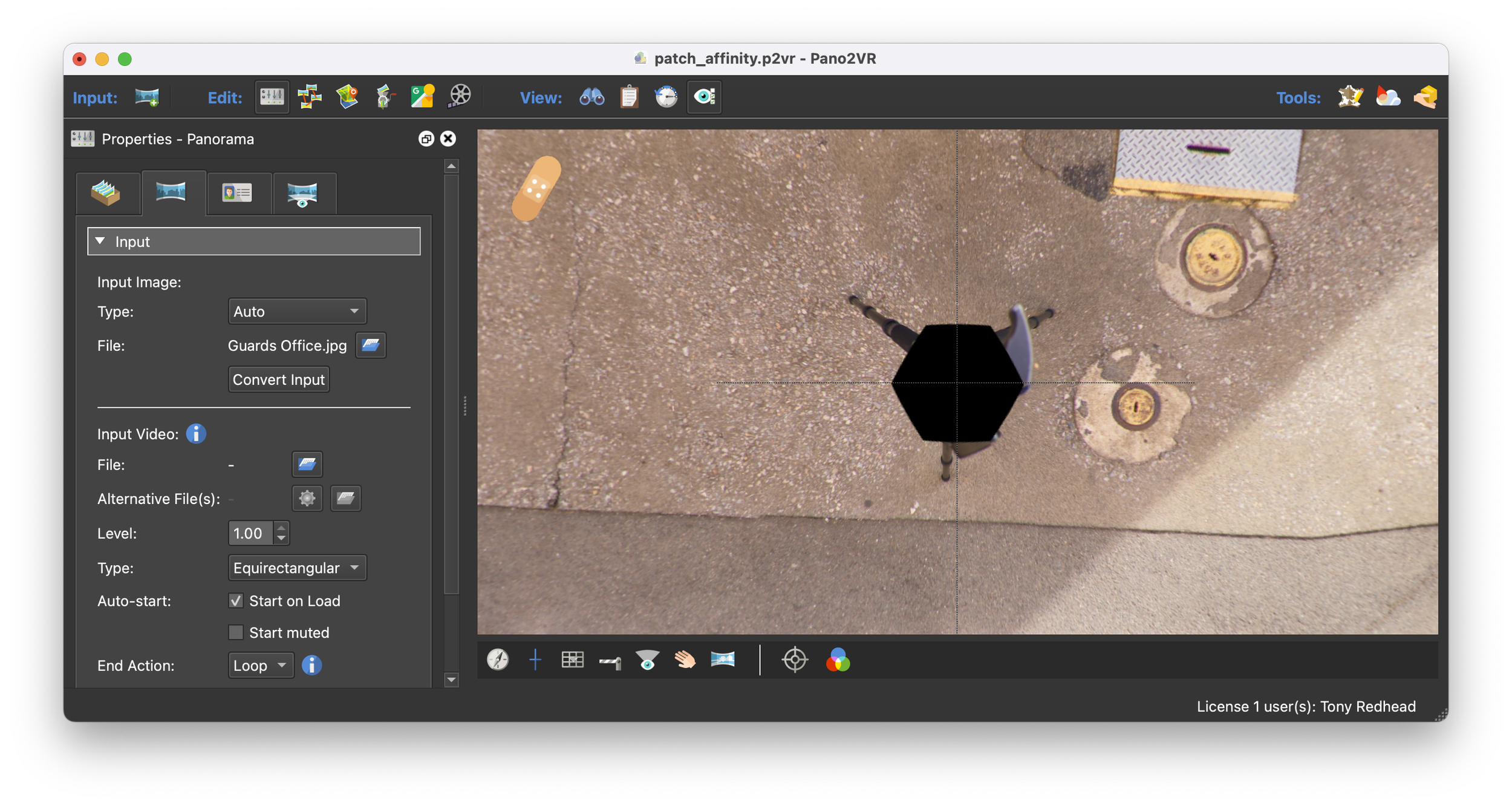
Figure #1: Nadir obscured by tripod and missing data
It’s a common practice in Pano2VR to "patch the nadir" by filling or editing the bottom part (nadir) of a 360° panoramic image as a patched nadir makes the panorama look seamless, especially for virtual tours or VR experiences.
Patching allows you to non-destructively extract and modify a specified area of the panorama without having to remap or convert the whole image.
Add an Image Patch
1. Choose the Patches Mode from the Viewer Modes
2. In the Viewer, move the panorama to the location to be patched.
3. Double-click in the Viewer to add the patch.
4. Open the Properties panel if not already open, to access the Patch’s parameters (figure #2)
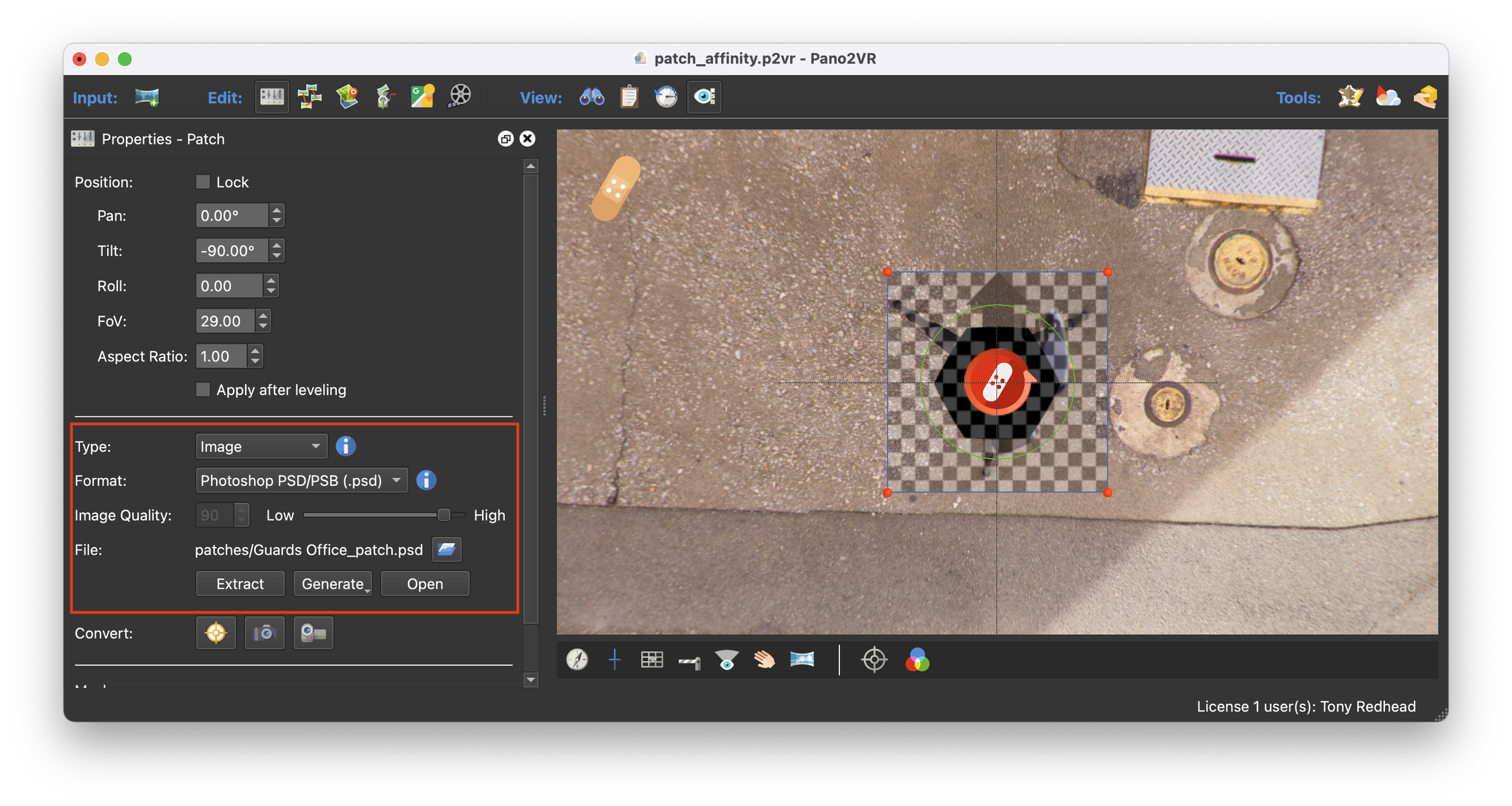
Figure #2: Patch added to nadir
For the Type, select Image.
Keep the Format as a Photoshop file.
Click, Extract.
Note: Patches are found in a subfolder of the project folder (figure #3)
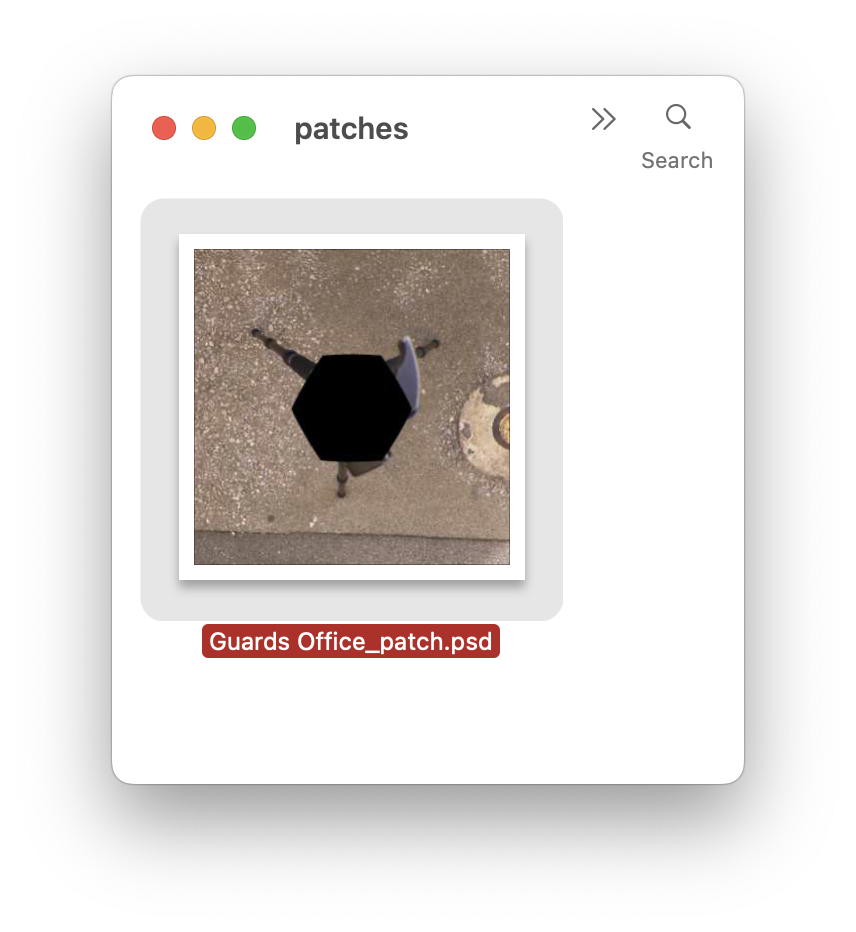
Figure #3: Exported .psd patch
Edit in Affinity
1. Open the extracted patch in the Affinity app (figure #4)
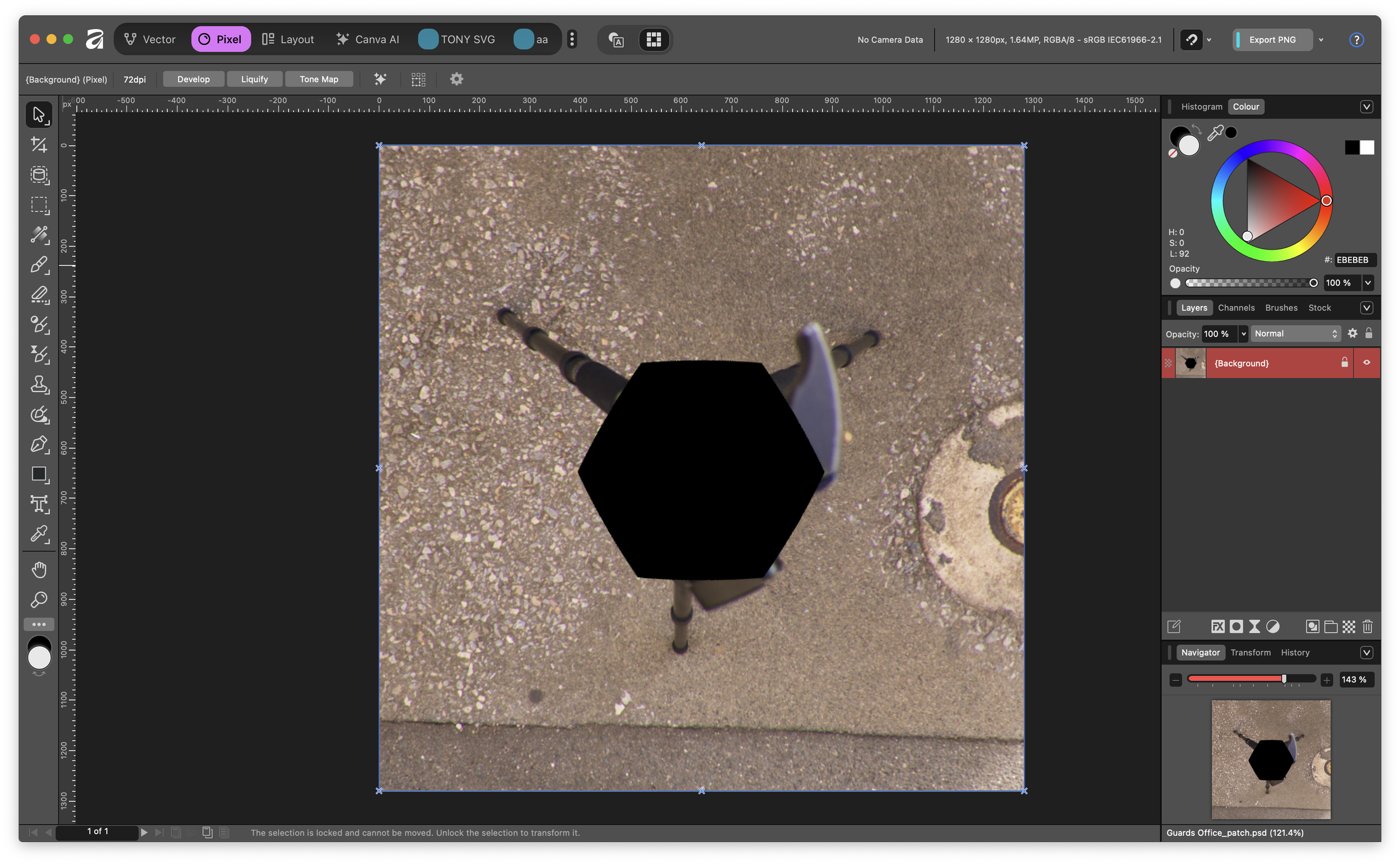
Figure #4: Patch opened in Affinity
2. Use the Inpainting brush to highlight the area you want to remove (figure# 5 & 6)
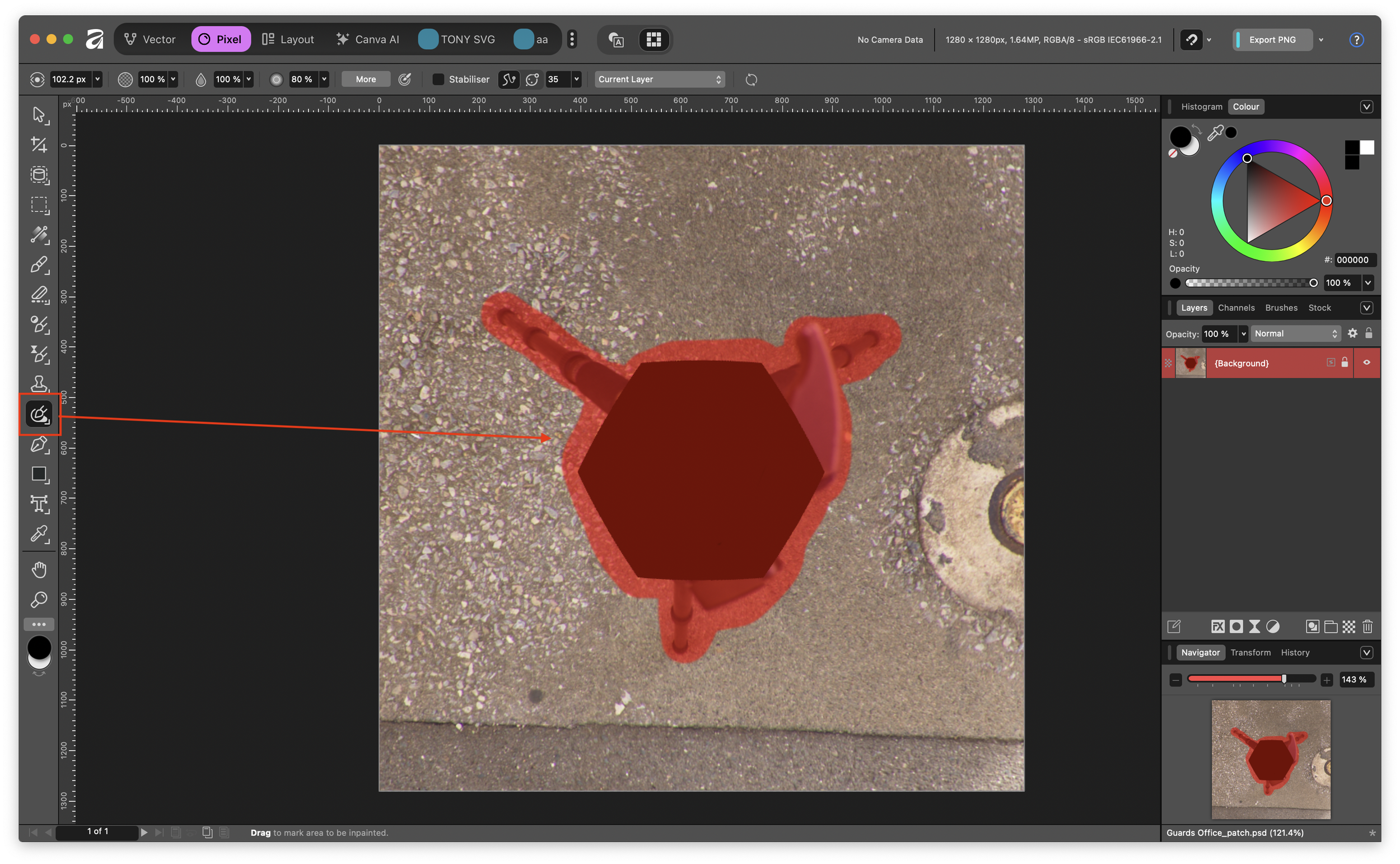
Figure #5: Inpainting region defined
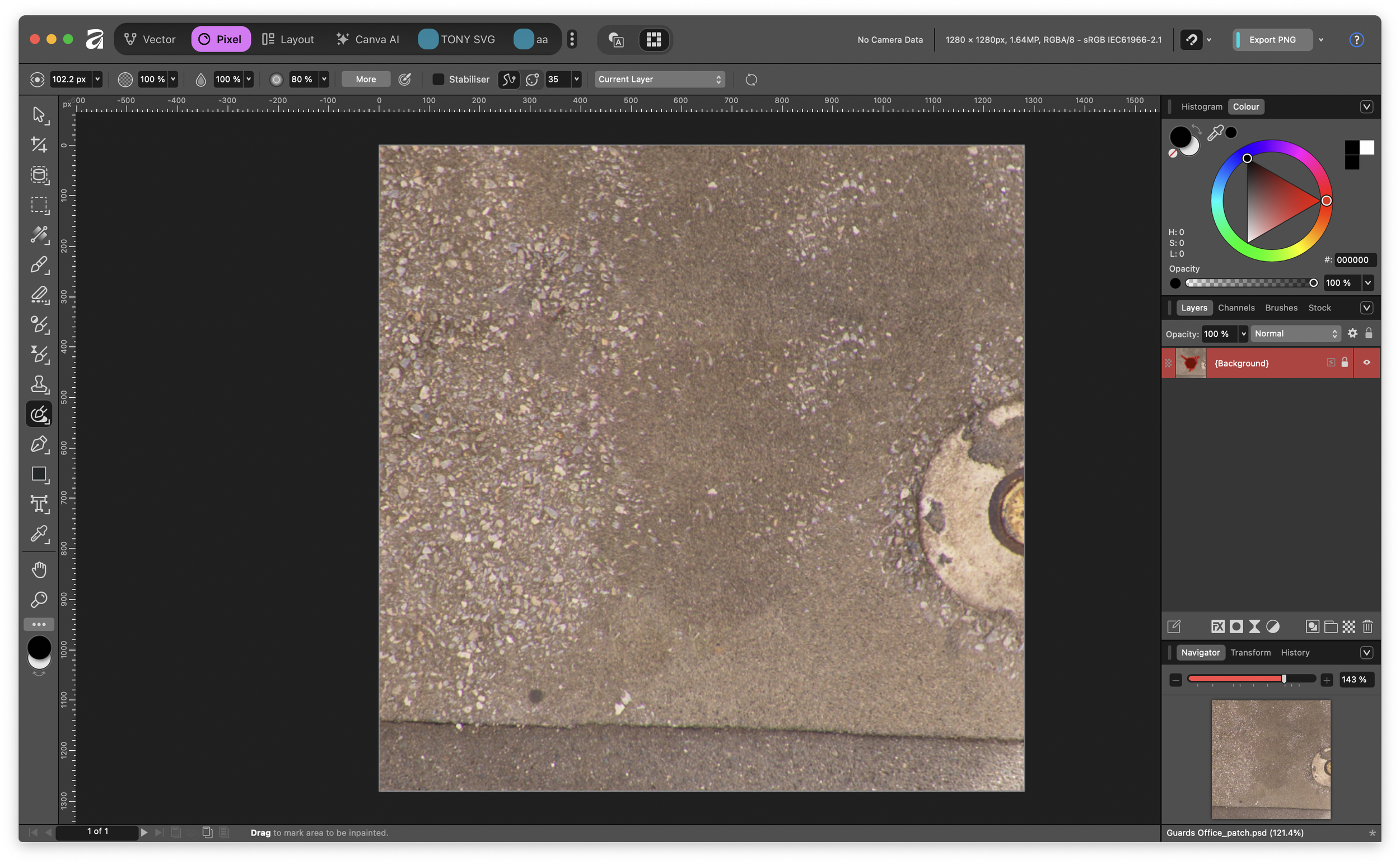
Figure #6: Inpainting applied
Note: selecting “Save” will save it in Affinity’s native format .af. We don’t want to do this because Pano2VR will not recognise the format and the patch will not be automatically updated.
At this point the only option is to use “Export” and then navigate through a couple of menus to find .psd (figure #7)
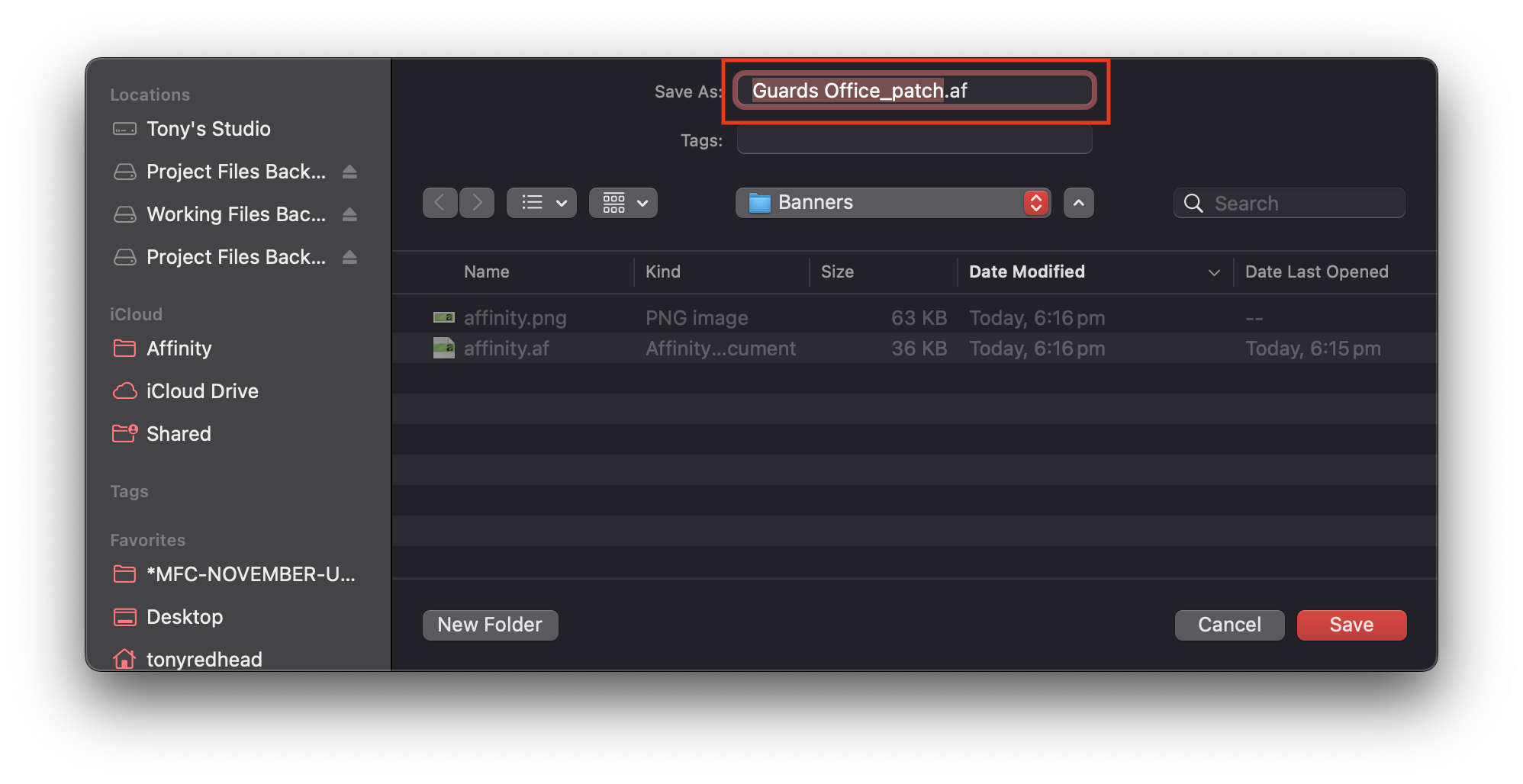
Figure #7: Save in Affinity native format
Configuring the Save Option for .psd ⇑
If we want to save our edited patch as .psd without using the “Export” option you have the option to Save it directly after making changes, provided we modify an option in the Settings menu,
1. From the Affinity dropdown menu select Settings (figure #8)
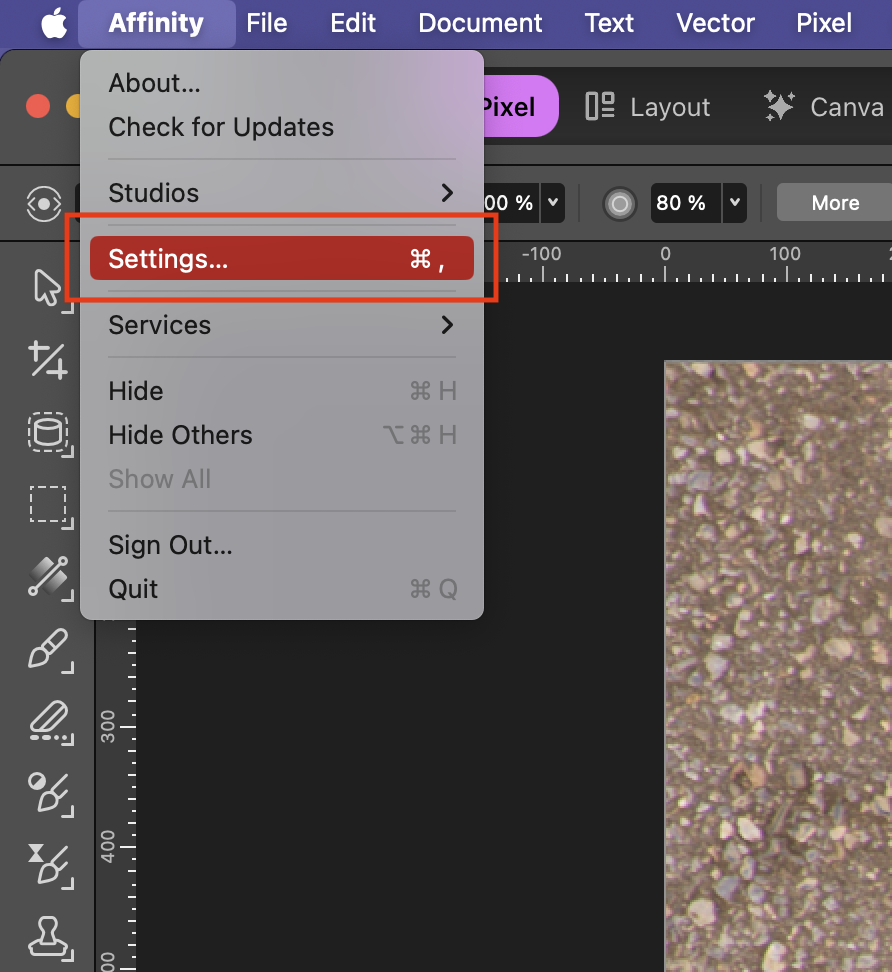
Figure #8: Open Affinity Settings
2. In the Settings window select the General tab
3. In the Document section, toggle the ‘Enable “Save” over imported PSD files’ swith to on (figure #9)
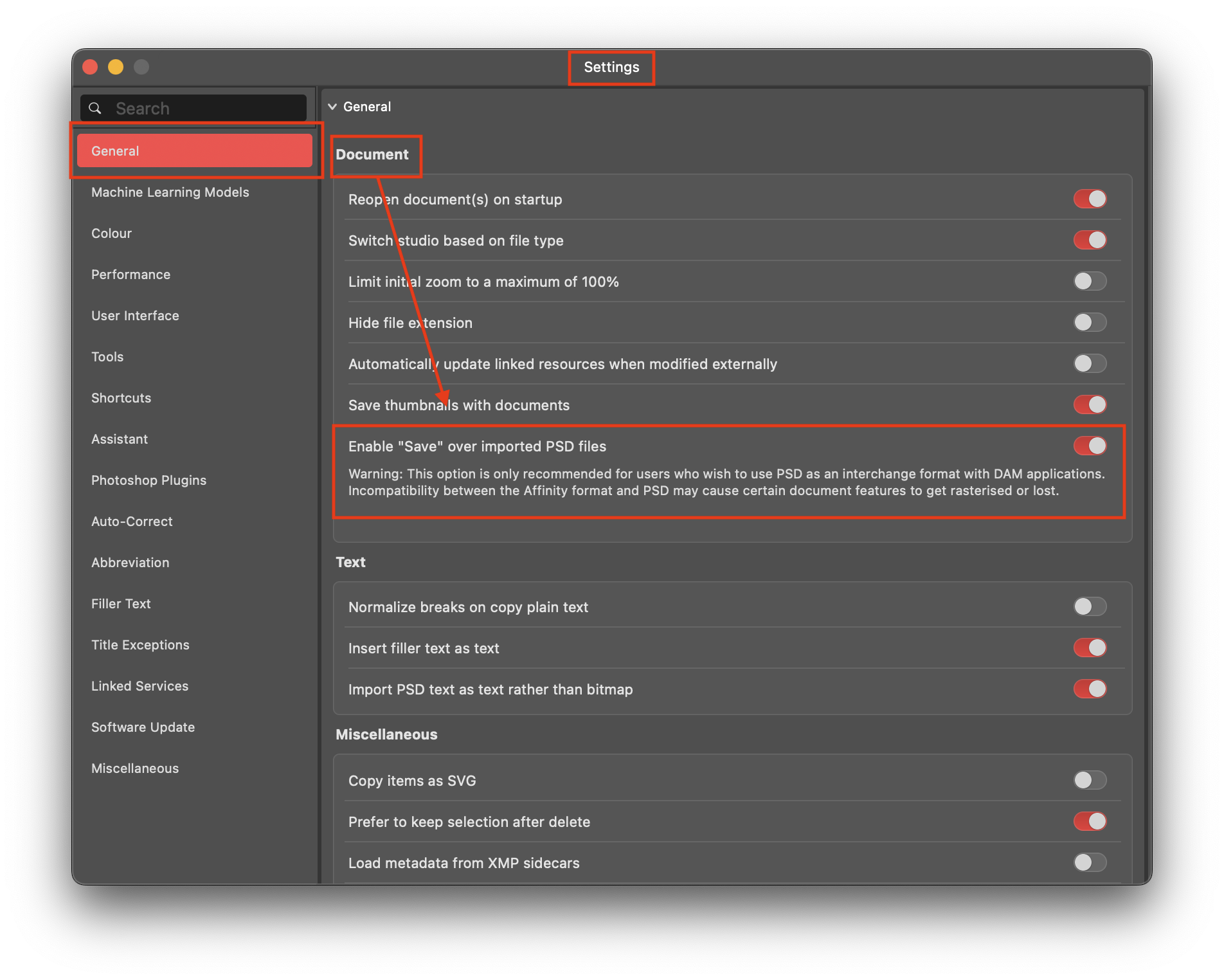
Figure #9: Toggle the Save over imported PSD file switch
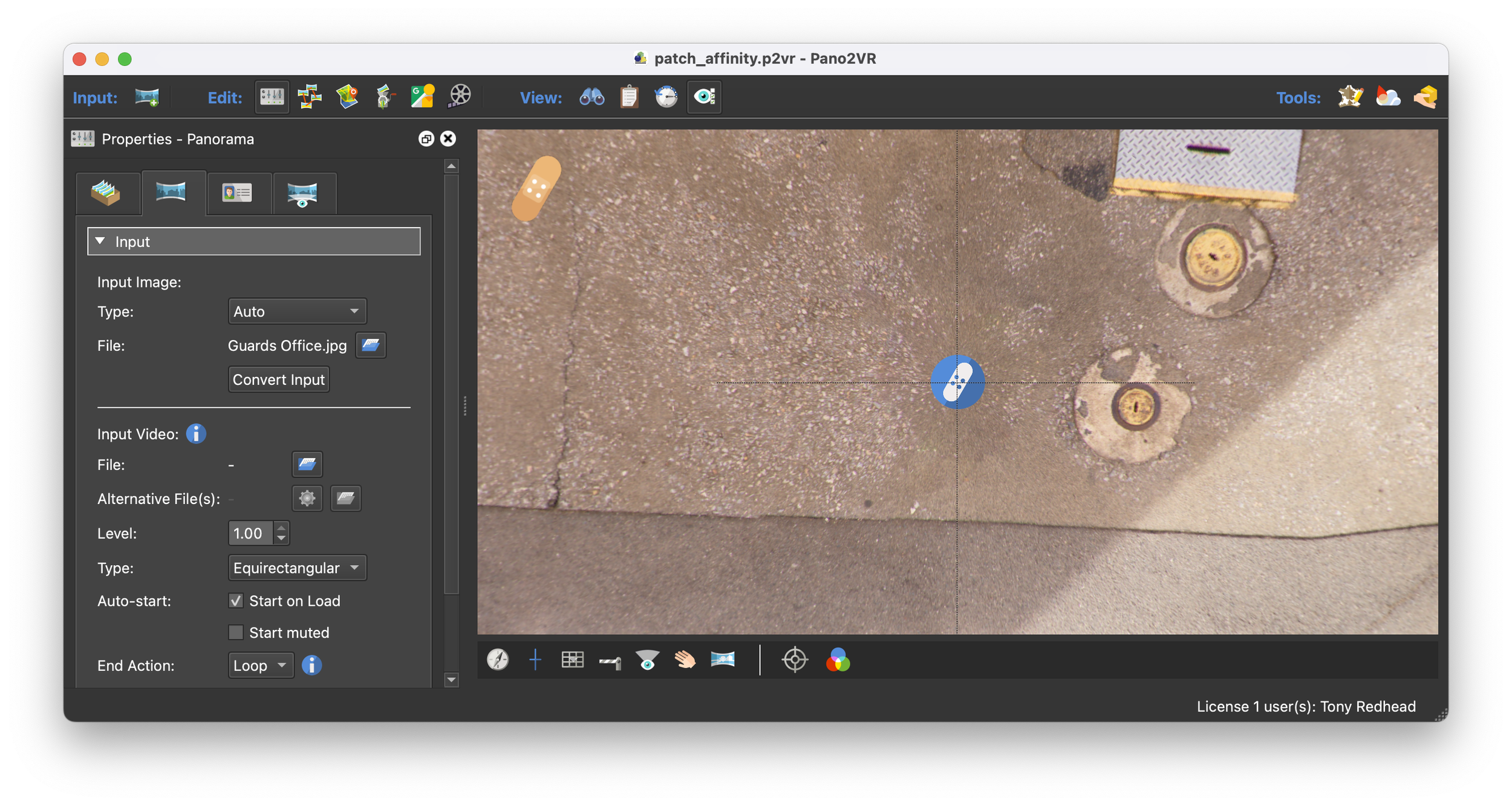
4. Now when you click on “Save” the .psd patch file is saved and the equirectangular file will be updated (figure #10)
Note. Be aware that this could be problematic because Affinity cannot save 100% compatible PSD files. The PSD format is proprietary and only partially documented, meaning Affinity offers limited support for a subset of its features.
Warning from Affinity ⇑
A crucial limitation is that text will always be rasterized when saving to PSD, as Serif chose not to reverse-engineer the undocumented aspects of the text structure. Furthermore, some PSD functions, such as Mesh Warp, are not supported. Therefore, users are often advised to utilize the Export to PSD feature, and they must conduct testing to ensure they use only features (filters, layers, tools) that are supported by the PSD format to avoid unexpected problems when opening the file in other software.
Hey there! 👋 ⇑
If my tutorials have made your tech life a little easier (or a lot less confusing) consider buying me a virtual coffee ☕️ or even lunch 🍔 Retirement means more time to help you, but sadly, less income for snacks. Click the Donation button 🙌 and thanks for the love!
