Overview
"A Modular Cinematic Sidebar is a skin component that uses CSS Grid, Fluid Typography and Pano2VR Skin Elements to create a balanced, app-like experience that intelligently adapts its shape and content based on the viewer's screen ratio."
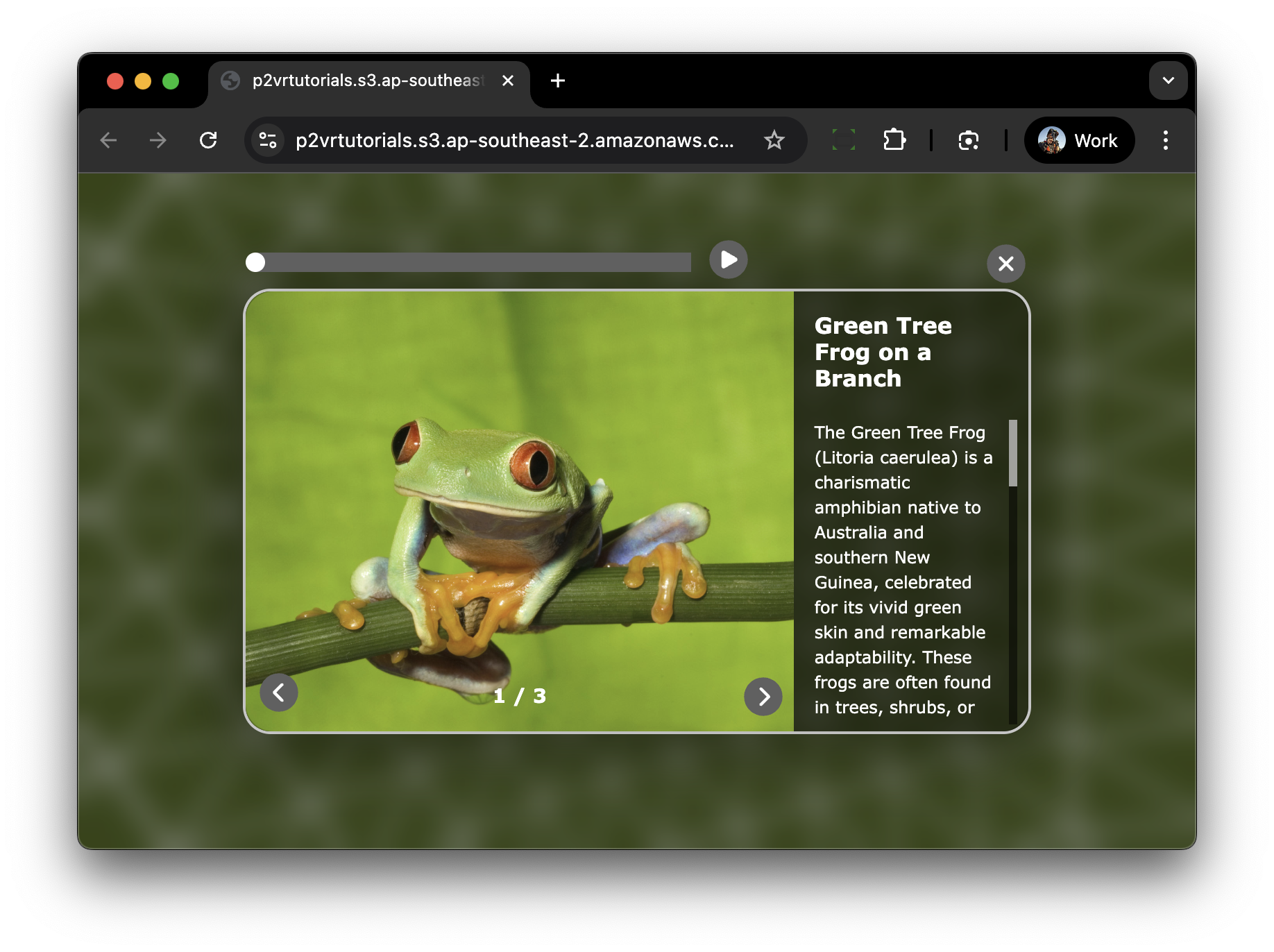
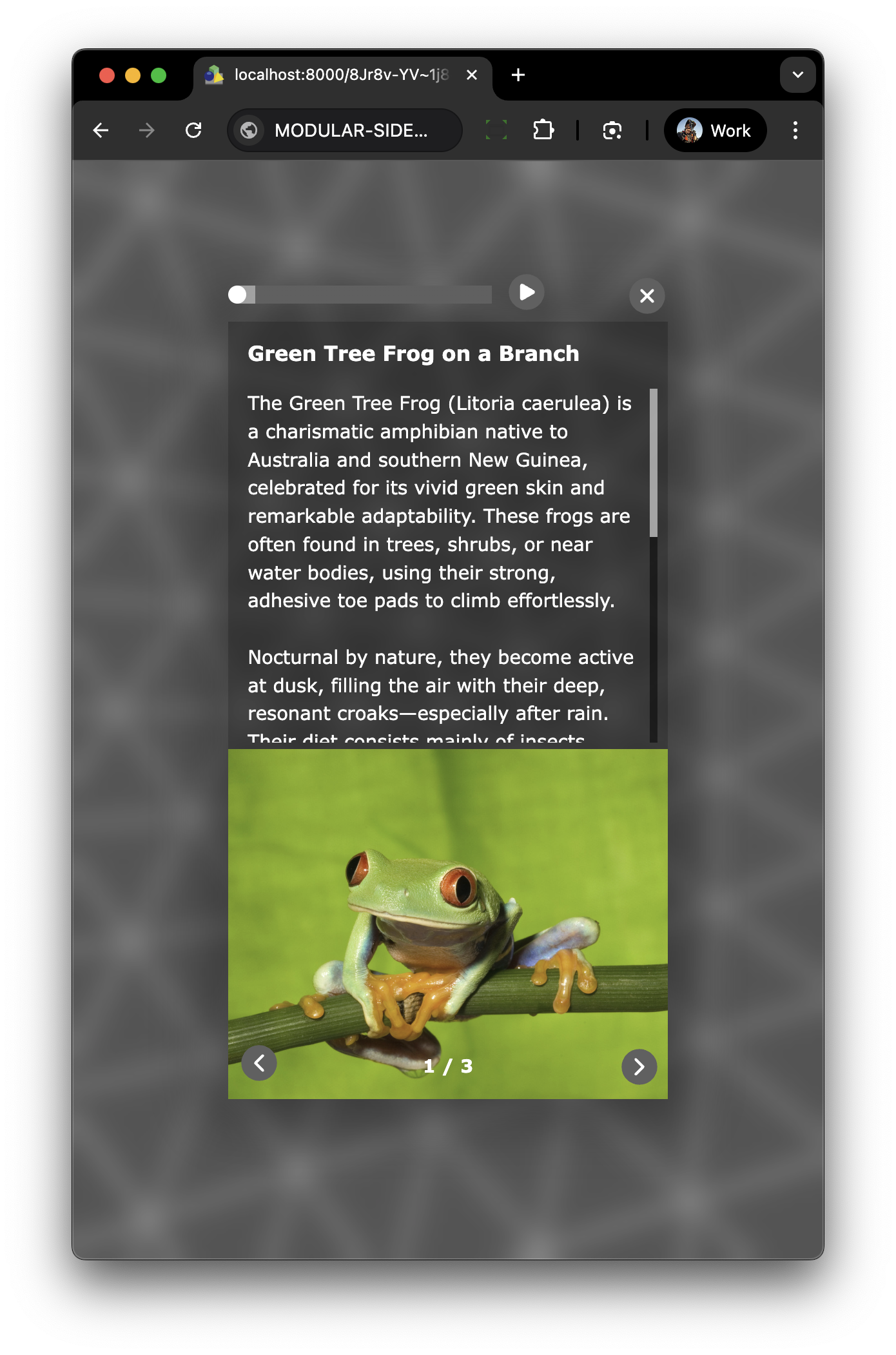
In it’s simplest form we are creating a responsive skin element (rectangle) that contains an image (external image), a responsive side-panel (rectangle) that contains a headline (text box) and body-copy (text box) with dynamic scrollbar. (figure #1)
Figure #1: Finished component
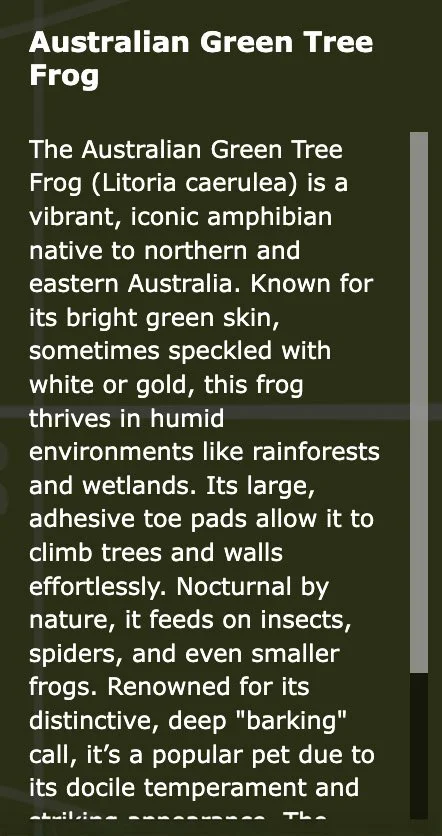
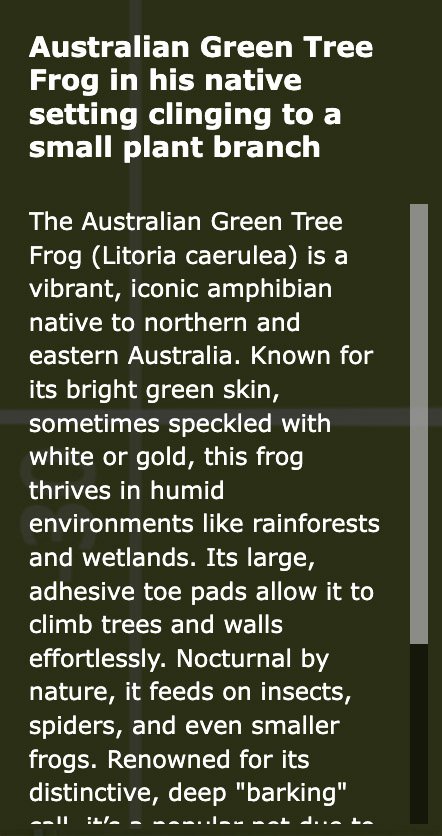
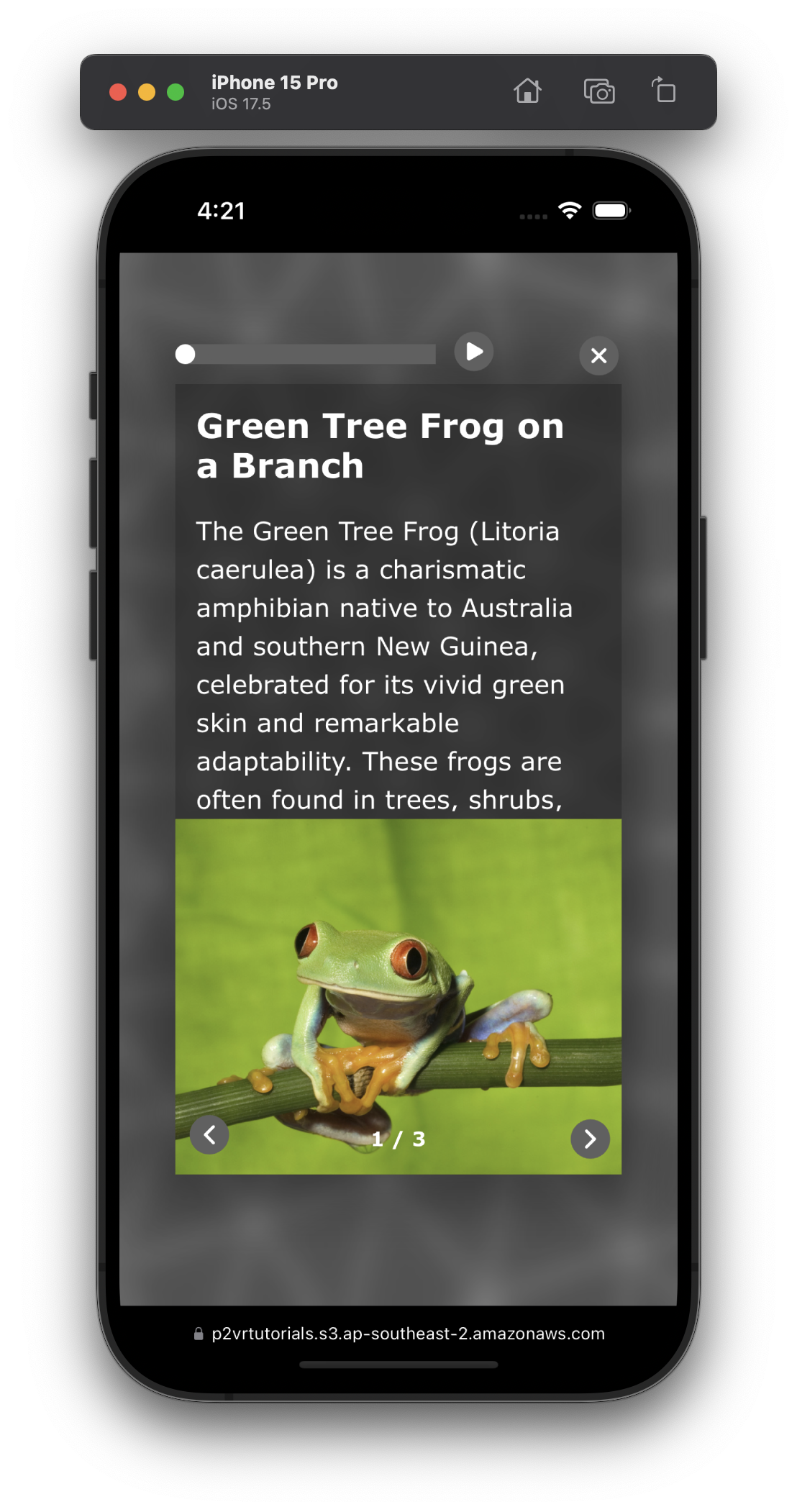
The key component is the responsive side-panel that has a body-copy element that resizes based on the size of the header element. In the examples below the second image has a header with more text dynamically the body-copy resizes to accomodate the larger header.(figure #2 & 3)
Figure #2: Version 1
Figure #3: Version 2
This method utilizes CSS Grid for layout and Modular Code Elements to manage typography.
Note: this tutorial is designed for Pano2VR V7. You can download the software here. In following these tutorials a working knowledge of Pano2VR is an advantage.
Final Output
Tutorial Files
In the tutorial folder, Modular_Sidebar_Tutorial, there is an Asset folder with a folder ‘360’ containing a panorama.
There is a V7 Pano2VR project ‘Modular_Sidebar_Popup.p2vr', and a skin ‘Modular_Sidebar_Popup.ggsk'
A ‘To_Upload’ folder containing an ‘images’ folder with 3 images. (figure #4)
Figure #4: Tutorial folder
Project Overview
In this tutorial, we will modify the Modular_Sidebar_Popup.ggsk project file by;
Step 2. Review the Project file ⇑
1. Open the Modular_Sidebar_Popup.p2vr (figure #5)
Note: you may need to relocate some files based upon your setup.
Figure #5: Project
2. Click on the Point Hotspot
In the Properties - Point Hotspot the Title and Description fields are populated with text.
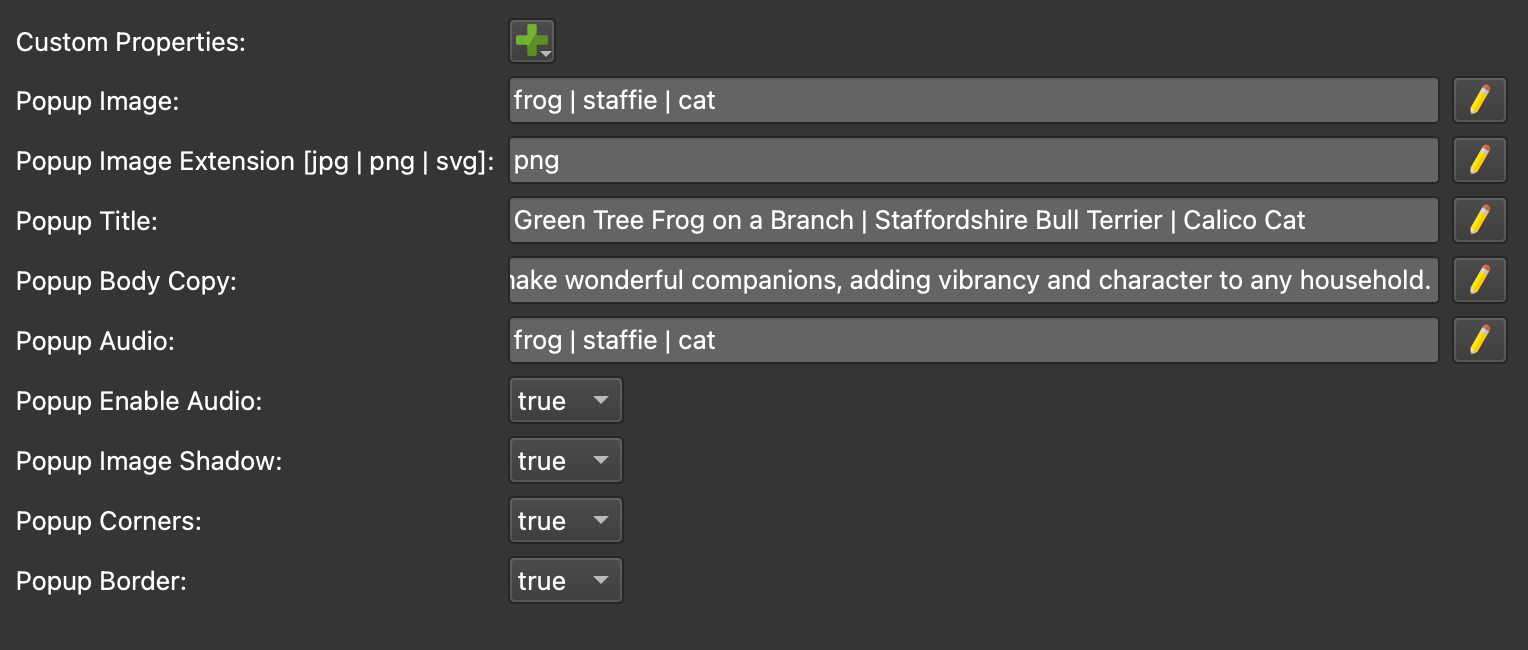
In the Custom Properties there are 4 options: Popup Image:, Popup Image Alt:, Popup Image Extension: and Popup Image Shadow. (figure #6)
Figure #6: Properties - Point Hotspot
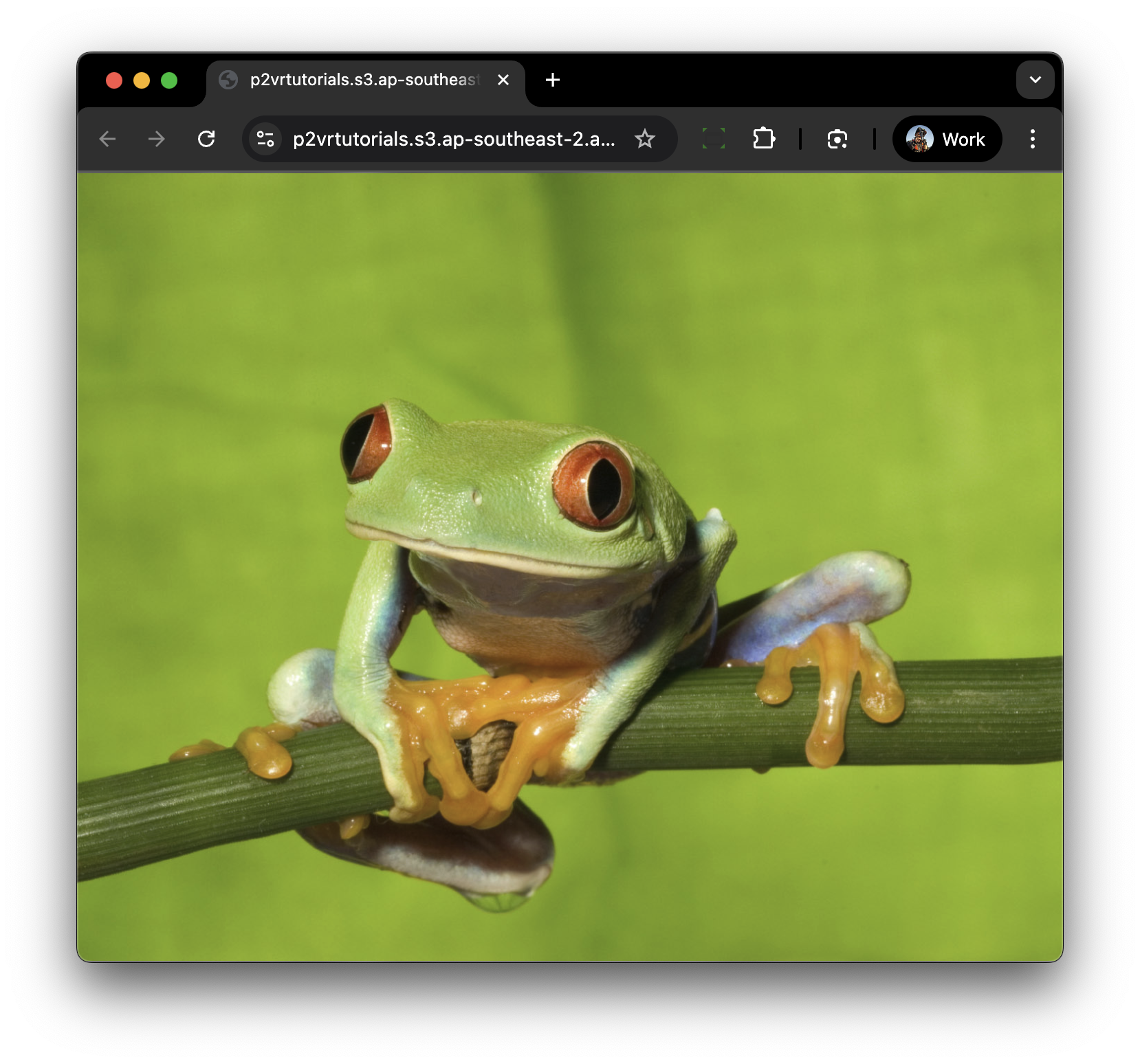
Popup Image: references the images in the To_Upload > images folder; green_tree_frog.jpg and green_tree_frog_alt.jpg
Figure #6: Popup images
Popup Image Alt: If set to ‘True’ it will display the alternate image, green_tree_frog_alt.jpg when the browser is in portrait mode in browser/mobile.
Note: this is optional but the external_image element changes size when the browser/mobile is in portrait mode and it may be advantageous to use a cropped version for better alignment within the element.
I’ve also made a slight modification to the frogs leg that extends below the branch to make it easier to see that it’s a different image.
Popup Image Extension: the file type of the image you are uploading, jpg, png, svg. Just the extension no “.”
Popup Image Shadow: If set to ‘True’ it will display a shadow behind the popup window
3. Click on the Publish button to publish the project (figure #7)
Note: changing the ratio of the browser window changes the orientation of the elements.
Figure #7: Landscape and Portrait modes with Popup Image Alt and Popup Image Shadow = false
This is our basic setup created with Pano2VR elements and Actions. In the top right corner of the sidebar are the two text fields Heading and Body-Copy. We will review these and other elements of the skin in the next step.
Step 3. Review the Skin file ⇑
1. From the Output panel click on the Edit Skin button to open the Skin Editor (figure #8)
Figure #8: Skin Editor
On the left we have the ‘Tree’ (figure #9)
Figure #9: Tree
In the tutorial we will review the actions in the ‘ht_image’ (hotspot template), ‘169_RATIO_BASE’ and its child elements and ‘trigger_close_popup’.
We will modify the ‘css_modular’ element adding CSS and Javascript code to manage the popup.
In the center we have the ‘Canvas’ and on the right we have the ‘Properties’.
We will not be modifiying or changing anything in the canvas or it’s properties but we will review how the elements are constructed and their related variables.
Properties: Variables (figure #10)
Figure #10: Properties > Variables
vis_image_popup = when true 169_RATIO_BASE is visible.
cp_popup_image, cp_popup_image_alt, cp_popup_image_ext and cp_pop_image_shadow = values defined in the custom properties added in the project file.
popup_image, popup_image_alt, popup_image_ext and pop_image_shadow = values defined in the custom properties that can be applied to elements within the skin and actions.
Note: The reason I create these additional variables is that the Hotspot Custom Property Variable value is only available when you are hovering over the Point Hotspot or if an element is a sub-element of the Hotspot Temple. In this case i want the value to be available to elements within the 169_RATIO_BASE.
These are the elements that make up the Tree listings
ELEMENT: 169_RATIO_BASE is a rectangle and contains the following child elements:
modular_popup_close_button
45_ratio_image
square_ratio_image
base_sidebar_holder (figure #11)
Figure #11: 169_RATIO_BASE in tree and canvas
It has the following properties:
Position >
Position: X: & Y: = 0. Anchor = center
Size: Width: 70vw (CSS) Height: calc(70vw*0.5625) (CSS) - This is a 16:9 ratio.
Size-Logic Block: responsive to the aspect ratio of the browser/device (figure #12)
Figure #12: ELEMENT: 169_RATIO_BASE logic block
Appearance >
Visible: = unchecked
Visible-Logic Block: = vis_image_popup = true | visible = true
Advanced >
Permeable: = checked
ELEMENT: modular_popup_close_button is a rectangle with an SVG image as a child element. Clicking the close button hides the popup.
Position >
Position: X: = -35 & Y: = 0. Anchor = top right
Size: 32 px
Actions >
Source: Mouse Click | Action: Trigger Click | Target: = trigger_close_popup (see Element: trigger_close_popup)
ELEMENT: 45_ratio_image is an external image.
Position >
Position: X: & Y: = 0. Anchor = bottom left
Size: Width: 70% Height: 100%
Size-Logic Block: responsive to the aspect ratio of the browser/device (figure #13)
Figure #13: 45_ratio_image logic block
External Image >
Content Scaling: Max | Never Enlarge = checked | Clip Content = checked | Alignment = center
ELEMENT: square_ratio_image is an external image.
Position >
Position: X: & Y: = 0. Anchor = bottom center
Size: Width: 100% Height: 55%
Size-Logic Block: responsive to the aspect ratio of the browser/device
Appearance >
Alpha: = 0.00
Alpha-Logic Block: responsive to the aspect ratio of the browser/device (figure #14)
Figure #14 square_ratio_image logic block
External Image >
Content Scaling: Max | Never Enlarge = checked | Clip Content = checked | Alignment = center
Element: base_sidebar_holder is a rectangle and contains the following child elements:
headline_text
bodycopy_text
It has the following properties:
Position >
Position: X: & Y: = 0. Anchor = top right
Size: Width: 100 pixels Height: 100 pixels
Rectangle >
Background: Enabled: = unchecked
Border: Width: = 0
Element: headline_text and bodycopy_text are text boxes and have the following properties:
Position >
Position: (headline_text) X: & Y: = 0
Position: (bodycopy_text) X: = 0 & Y: = 10
Anchor = top right
Size: Width: 100% Height: 10 pixels
Rectangle >
Background: Enabled: = unchecked
Border: Width: = 0
Text > headline_text
Align: Horizontal: = Left | Vertical: = Top
Formatting: Word Wrap = checked | Auto size = checked | Scroll bar = unchecked
Text > bodycopy_text
Align: Horizontal: = Left | Vertical: = Top
Formatting: Word Wrap = checked | Auto size = unchecked | Scroll bar = checked
ELEMENT: ht_image is a hotspot template and contains the following child elements:
tt_ht_image
ht_bt_image
It has the following properties:
Appearance >
Visible-Logic-Block: Trigger: vis_image_popup = true | Visible: = false
Actions > (figure #15)
Figure #15: ht_image actions
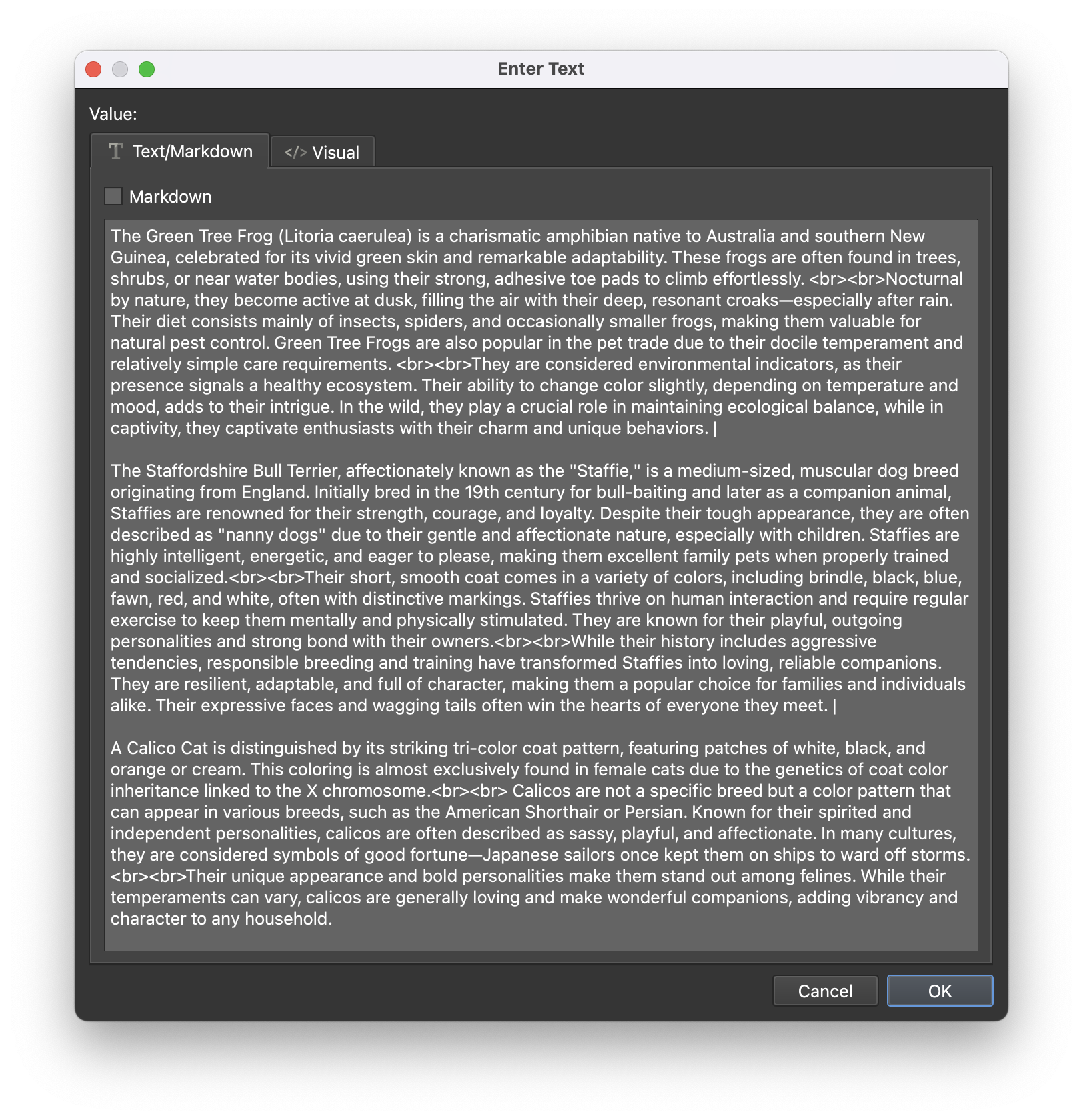
Actions 1 & 2 set the headline_text and bodycopy_text values to the Point Hotspot Title and Description entries (figure #16)
Figure #16: Point Hotspot properties
Actions 3,4,5 & 6 set the Custom Property values to the respective popup_image variables (figure #17)
Figure #17: Custom Properties
Note: Action 4 & 6 have ‘modifiers’ that set the variable values to true if the custom property values have been set to true (figure #18)
Figure #18: Modifiers
Actions 7,8 & 9 set the value for the External Image elements combining different variables into a string.
Actions 7 and 8 >
If the Custom Property ‘Popup Image Alt’ = false then the following string sets the value for 45_ratio_image and square_ratio_image elements.
assets/images/$(*popup_image).$(*popup_image_ext)
based on the current settings the result would be;
assets/images/green_tree_frog.jpg
This means that the same image is used for both the landscape and portrait views of the Modular Sidebar.
Action 9 >
If the Custom Property ‘Popup Image Alt’ = true then the following string sets the value for the square_ratio_image.
assets/images/$(*popup_image)_alt.$(*popup_image_ext) or:
assets/images/green_tree_frog_alt.jpg
This means that different images are used for both the landscape and portrait views of the Modular Sidebar.
Action 10 sets the value for the variable: vis_image_popup = true showing the 169_RATIO_BASE element.
ELEMENT: NEXT_PREVIOUS: container with child previous and next buttons.
ELEMENT: background_tint: rectangle with a tint to darken the background. It has the following properties:
Appearance >
Visible: = 0.00
Visible-Logic Block: Trigger: vis_image_popup = true | Visible: = false
Actions >
Source: Mouse Click | Action: Trigger Click | Target: trigger_close_popup (see Element: trigger_close_popup)
ELEMENT: trigger_close_popup: rectangle with Actions that close the Modular Sidebar and reset variables.
Note: This element enables other elements with similar mouse click actions to remotely access the actions in a single location rather than having to repeat them in each individual action.
It has the following properties:
Actions > Basically the actions reset true variable values to ‘false’, text variable values to ‘empty’ and external image variables to ‘empty’
ELEMENT: css_modular: is a Code Element that has the following properties:
Code Element >
Contains a small script that defines the class and attributes of the shadow applied to the 169_RATIO_BASE element
/*!
<style>
.infopopshadow {box-shadow: 0px 0px 40px 20px rgba(0, 0, 0, 0.3);}
</style>
*/
Step 4. Creating the Code ⇑
In this step we will add the code to transform standard text boxes into a Modular Cinematic Sidebar. It uses CSS Grid to intelligently stack headlines over body text, automatically filling available space. Crucially, it syncs with Logic Blocks to adapt typography and layouts instantly for seamless desktop or mobile viewing.
This code is structured into six functional zones designed to bridge the gap between Pano2VR’s interface and modern web standards:
1. Landscape Architecture
This section establishes the "Skeleton" of the sidebar. It uses CSS Grid to create a structured coordinate system, defining the sidebar’s width and height while setting up the "auto-fill" behavior for content.
2. Cinematic Typography
These lines control the "Voice" of your text. Using the clamp() function, it creates Fluid Typography that scales smoothly between a minimum and maximum size based on the screen width, ensuring legibility on any monitor.
3. Internal Wrapper Fixes
This is the "Utility" section. It targets the hidden div layers that Pano2VR automatically creates. By overriding their default settings, it ensures your custom grid and padding rules actually reach the text inside.
4. Portrait & Square Repair
The "Brain" of the responsiveness. This Media Query detects when the screen aspect ratio becomes square or vertical. It triggers a layout shift, docking the sidebar to the bottom and recalculating font sizes so they don't "shrink" on narrow mobile devices.
5. Scrollbar Aesthetics
The "Polish" zone. It replaces the chunky default browser scrollbar with a slim, semi-transparent "Floating" version. This keeps the focus on your imagery and ensures the UI feels like a premium app overlay.
6. JavaScript
The “Heartbeat” of the project, providing console logging to confirm the sidebar is active while utilizing specialized listeners to maintain UI integrity.
By monitoring both standard browser resize events and Pano2VR-specific node changes, the script ensures that fluid typography and grid layouts recalculate instantly whenever a user rotates their device or navigates to a new panorama, keeping the "Cinematic" experience seamless and refresh-free.
1. Open the Skin Editor if it’s not already open
2. Select the ‘css_modular’ element
3. In the Properties panel open the ‘Code Element’ dropdown
4. Click on the ‘Pencil’ icon to open the ‘Enter Value’ window (figure #19)
Figure #19: Enter Value window
5. Cut and paste the following after the .infopopshadow entry (figure #20)
/* 1. LANDSCAPE ARCHITECTURE (Skeleton) */
.base-box {
width: 30% !important;
height: 100% !important;
display: grid !important;
grid-template-rows: auto 1fr !important;
grid-row-gap: 10px !important;
padding: 15px 8px 15px 15px !important;
box-sizing: border-box !important;
overflow: hidden !important;
z-index: 999;
}
Figure #20: Script added to the Enter Value window
Note: If you can’t see all the code text you can horizontally scroll in the fields while selecting it.
About the LANDSCAPE ARCHITECTURE script
These three lines are the ‘engine’ of the sidebar.
display: grid !important;
grid-template-rows: auto 1fr !important;
grid-row-gap: 10px !important;
They transform the base_sidebar_holder from a simple rectangle into a smart layout that knows how to prioritize your headline while letting the body text fill the rest of the space.
display: grid !important;
This turns the rectangle into a CSS Grid. Unlike a standard "block" layout where elements just stack on top of each other blindly, a grid creates a structured coordinate system. It allows us to control the exact size and spacing of the rows and columns inside the box without using fixed pixel heights.
grid-template-rows: auto 1fr !important;
This is the most critical line. It defines two distinct rows:
auto: This tells the first row (Headline) to be exactly as tall as its content needs to be. If the headline is one line, the row is short; if it wraps to three lines, the row grows automatically.
1fr: This tells the second row (Body-copy) to take up 1 fraction of the remaining vertical space.
By using 1fr here, you ensure the body text always stretches to the very bottom of the sidebar, regardless of how much space the headline took up. This is what makes your scrollbar appear in exactly the right place.
grid-row-gap: 10px !important;
This creates a consistent gutter or "breathing room" specifically between the two rows.
Instead of using margin-bottom on the headline (which can sometimes be finicky in Pano2VR), the grid handles the spacing itself.
Even if the headline grows or shrinks, there will always be exactly 10px of space before the body text starts.
Another way to show this is a cupboard comparison (figure #21)
Figure #21: Cupboard comparison
The Cupboard Grid Analogy
grid-template-rows: auto (fits content):
Think of the top shelf as the Headline. By setting it to auto, the shelf height automatically adjusts to fit exactly what you put in it (the cereal boxes).
The bottom shelf is the Body-copy, set to 1fr. This means it takes up all the "fractional" remaining space in the cupboard, no matter how tall the unit is.
grid-row-gap: 10px:
This is the physical thickness of the shelf divider. It ensures your content never touches, providing that "cinematic" breathing room.
1fr with Scrollbar:
The right-hand cupboard shows what happens when you have installed a new hanging rail and kitchen tools (too much text) in the top shelf. The bottom shelf, instead of the cupboard exploding or items falling out, the 1fr logic keeps the shelf the same size, allows it flow past the bottom of the cupboard (clipped) and simply adds a "scroll bar" so you can move the bottom shelf and reveal the contents (text).
6. Cut and paste the following after the /* 1. LANDSCAPE ARCHITECTURE (Skeleton) */entry and before </style> */
/* 2. TYPOGRAPHY (Voice) */
.headline-text {
position: relative !important;
grid-row: 1 !important;
font-size: clamp(14px, 1.2vw, 28px) !important;
font-weight: 600 !important;
line-height: 1.2 !important;
}
.body-text {
position: relative !important;
grid-row: 2 !important;
display: flex !important;
flex-direction: column !important;
overflow-y: auto !important;
min-height: 0 !important;
height: 100% !important;
font-size: clamp(12px, 1.0vw, 26px) !important;
font-weight: 300 !important;
line-height: 1.4 !important;
}
About the TYPOGRAPHY script
The Typography section serves as the "Voice" of your sidebar, determining not just what the text says, but how it speaks to the viewer through cinematic scaling.
Here is a brief overview of its core functions:
Fluid Scaling (
clamp): This is the most critical feature. It allows the text to grow and shrink dynamically based on the screen size, ensuring the headline is never too small on a phone or overwhelmingly large on a 4K monitor.Visual Hierarchy (
font-weight): By assigning a bold weight (600) to the headline and a light weight (300) to the body, it creates an immediate visual distinction. This tells the viewer's eye exactly where to look first.Line-Height Harmony: It sets specific spacing between lines of text (1.2 for headlines, 1.4 for body). This "leading" prevents the text from feeling cramped and ensures high readability, which is essential for a professional user interface.
Explicit Layering (
grid-row): It assigns each text element to its specific "shelf" in the grid. This ensures that even if the Pano2VR skin tries to move things around, the headline is locked to the top and the body text stays below it.
7. Cut and paste the following after the /* 2. TYPOGRAPHY (Voice) */entry and before </style> */
/* 3. INTERNAL WRAPPERS (Utility) */
.headline-text div,
.body-text div {
position: relative !important;
display: block !important;
height: auto !important;
margin: 0 !important;
padding-right: 15px !important;
}
About the INTERNAL WRAPPERS script
This section is the "Guardrail" for your content. Pano2VR automatically wraps your text in hidden div layers that can sometimes ignore your custom CSS or add unwanted margins.
Overriding Defaults: It strips away any default positioning or heights that Pano2VR might try to force on the text containers.
Padding Protection: By adding
padding-right, it ensures that even when the scrollbar appears, your text doesn't get "squeezed" against the edge of the box.Layout Stability: It forces these internal layers to behave as simple, predictable blocks so the "Cupboard" grid can do its job without interference.
8. Cut and paste the following after the /* 3. INTERNAL WRAPPERS (Utility) */ entry
/* 4. THE PORTRAIT REPAIR (Brain) */
@media screen and (max-aspect-ratio: 1/1) {
.base-box {
width: 100% !important;
height: 45% !important;
left: 0 !important;
bottom: 0 !important;
display: grid !important;
grid-template-rows: auto 1fr !important;
grid-row-gap: 8px !important;
}
.headline-text {
grid-row: 1 !important;
font-size: clamp(16px, 4vw, 24px) !important;
width: 100% !important;
}
.body-text {
grid-row: 2 !important;
font-size: clamp(10px, 2.0vw, 18px) !important;
width: 100% !important;
line-height: 1.3 !important;
}
.headline-text div, .body-text div {
position: relative !important;
top: 0 !important;
padding-right: 15px !important;
}
}
About the PORTRAIT REPAIR script
This is the "Shape-Shifter" logic. It uses a Media Query to detect when the screen is taller than it is wide (like a smartphone) and completely reimagines the layout.
The Bottom Dock: It transforms the sidebar from a 30% vertical column into a horizontal panel that sits at the bottom of the screen.
Mobile-First Scaling: It swaps the font sizes to a different set of
clampvalues specifically tuned for small screens, ensuring the headline remains bold and readable at arm's length.Proportional Balance: By setting the height to 45%, it ensures the user can still see the panorama above the text, maintaining the immersive experience even on a small phone.
9. Cut and paste the following after the /* 4. THE PORTRAIT REPAIR (Brain) */ entry and before </style> */
/* 5. SCROLLBAR AESTHETICS (Polish) */
.body-text::-webkit-scrollbar { width: 6px !important; }
.body-text::-webkit-scrollbar-thumb { background: rgba(255,255,255,0.6) !important; border-radius: 10px !important; }
About the SCROLLBAR AESTHETICS script
This section is the "Visual Polish." Standard browser scrollbars are often clunky and can ruin a cinematic aesthetic.
Modern Minimalism: It replaces the bulky, grey default scrollbar with a slim, semi-transparent "pill" design.
Non-Intrusive Design: By making the scrollbar thin (6px) and rounded, it provides the necessary functionality for long text without distracting from the beautiful photography of your tour.
Brand Consistency: It ensures that even the most functional parts of the UI match the high-end look of the rest of your project.
10. Cut and paste the following after the /* 5. SCROLLBAR AESTHETICS (Polish) */ entry and after </style> */
/* 6. JAVASCRIPT (Heartbeat) */
function adjustBodycopyPosition() {
console.log("Modular Cinematic Sidebar: Version 1.0 Active");
}
window.addEventListener('resize', adjustBodycopyPosition);
player.addListener('nodeschanged', adjustBodycopyPosition);
About the JAVASCRIPT script
This JavaScript section acts as the project's Control Center.
It uses "Listeners" to keep the sidebar aware of its environment: the Resize Listener instantly recalculates the layout if a user rotates their phone, and the Nodeschanged Listener (a Pano2VR special) ensures your custom styling "re-awakens" every time you navigate to a new panorama. Together, they ensure the UI feels like a seamless, native app that never needs a manual refresh.
11. Select ‘OK’
Note: make sure you select OK if you just close the window you will loose any changes. If you are looking for the whole script you can find a text version here.
12. Save the skin as Modular_Sidebar_Popup_Script.ggsk
Step 5. Assigning Classes & Script Trigger ⇑
In the script there are a number of classes defined, they are;
base-box
headline-text
body-text
1. In the Tree select the 169_RATIO_BASE > ‘base_sidebar_holder’ element
2. In Properties > Advanced dropdown set CSS Classes: = base-box (no .) (figure #22)
Figure #22: CSS class added
3. Select the base_sidebar_holder > ‘headline_element’
4. In Properties > Advanced dropdown CSS Classes: = headline-text (no .)
5. Select the base_sidebar_holder > ‘bodycopy_element’
6. In Properties > Advanced dropdown CSS Classes: = body-text (no .)
7. Select the ‘css_modular’ element
8. In Properties > Actions add a new action: Source: = Node Changed | Action: = Go to URL | Parameters: = javascript:adjustBodycopyPosition();
9. Save the skin as Modular_Sidebar_Popup_Classes.ggsk
10. Close the skin
11. Publish the project (figure #23)
Figure #23: Published output
Step 6 - Custom Properties and Exposed Colors ⇑
1. In the Project window click on the Point Hotspot (turns red)
2. Scroll down to the bottom of the Properties - Point Hotspot panel (figure# 24)
Figure # 24: Custom Properties
Note: Step 2. Review the Project file has details on the Custom Properties and how they affect the output.
3. Set the following;
Popup Image Alt: = true
Popup Image Shadow: = true
4. Save the Project and publish the project (figures# 25 - 26)
Figure #25: Popup with shadow
Figure #26: Popup with shadow and alternate image (note leg, water drop retouched)
5. In the Project window click on the ‘Edit Skin Configuration’ button
6. In the ‘Edit Skin Configuration’ window there are 4 exposed colors (figure #27)
Figure #27: Exposed colors
7. Modify the colors and republish the project (figure #28)
Figure #28: Modified colors
Summary ⇑
"Hey there! 👋 If my tutorials have made your tech life a little easier (or a lot less confusing) consider buying me a virtual coffee ☕️ or even lunch 🍔 Retirement means more time to help you, but sadly, less income for snacks. Click the Donation button 🙌 and thanks for the love!"