Update 9th Feb
This tutorial has been updated with a new Tutorial Folder and CSS code that is compatible with the code used in Part 2 of the tutorial.
Overview
"Lottie animations bring life to virtual tours, but they often arrive with colors that don't match our brand or client needs. In this two-part series, we are going to unlock the power of CSS to take total control over our icons. We’ll move from simple 'One-Click' global changes to surgical, layer-by-layer customization—all without ever having to use external editing tools."
Tutorial 1: Focus: Speed, Simplicity, and Interaction.
Tutorial 2: Focus: Precision, Control, and the 'Deep Dive'.
"In this first tutorial, we’ll learn the most efficient way to brand a Lottie icon. We will use a 'Global Script' to instantly change the color of an entire animation using a single CSS class. You’ll also learn how to add professional 'States'—making your icons react, grow, and change color when a user hovers or clicks, giving your tour a polished, tactile feel."
Note: this tutorial is designed for Pano2VR V7. You can download the software here. In following these tutorials a working knowledge of Pano2VR is an advantage.
NOTE: Click on any image to enlarge it
Final Output
Tutorial Files
The tutorial folder contains all the required files to complete the tutorial. There is a Pano2VR project and a skin file. The Asset folder includes an equirectangular file and the lottie .json. (figure #1)
Figure #1: Tutorial Folder - Updated 0907
Project Overview
In this tutorial, we will modify the lottie_color_change.ggsk project file by;
Step 2. Creating a Global Color Change ⇑
The first step will be to change the color of the lottie-global element from the default black to red. To change every element of your Lottie icon simultaneously we will use a Global Color Change to target all internal paths via CSS.
1. Open the Project
2. Publish the Project (figure #2)
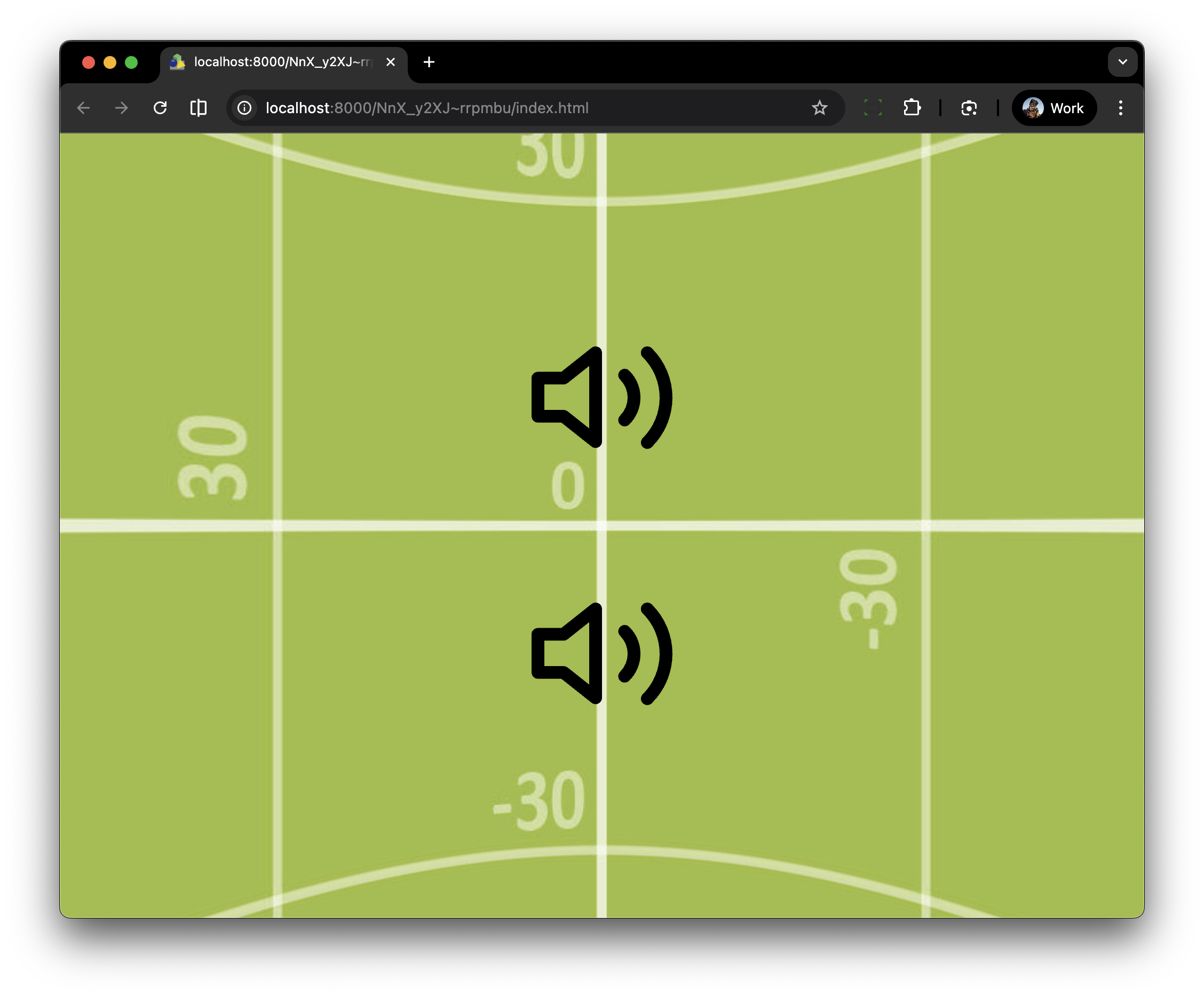
Figure #2: Unmodified Lottie Files
3. Open the Skin Editor (figure #3)
Figure #3: lottie_color_change_part1 skin
4. Select the Lottie-CSS element and
5. Open the ‘Edit Value’ window (figure #4)
Figure #4: Edit Value window button
6. Copy and paste the following code into the window (figures #4 & #5)
/*!
<style>
/*** LOTTIE THEMED CUSTOM TEMPLATE
* 1. .lottie-global handles the physical behavior.
*/
/* 1: PHYSICS & GLOBALS */
.lottie-global {
display: inline-block;
transition: transform 0.3s ease-out !important; fill 0.2s ease !important;
transform-origin: center center; !important;
cursor: pointer;
}
/* 2. GLOBAL COLOR*/
/* Global default for ANY lottie with the .lottie-global class */
.lottie-global svg path {
fill: red;
transition: fill 0.3s ease;
}
</style>
*/
Figure #4: Enter Value window
Figure #5: Code entered
Here is the breakdown of what each part is doing:
Section 1: Physics & Globals (.lottie-global)
This section controls how the Lottie container behaves in the 3D space of your browser. It doesn't care about colors; it cares about movement and feel.
display: inline-block;: Ensures the element respects width/height properly and can be scaled without jumping around the screen.
transition: transform 0.3s ease-out !important;: This is the "Smoothing Engine." It tells the browser, "When this icon grows or shrinks, don't just snap it—make it a smooth, 0.3-second animation."
transform-origin: center center;: This sets the "Anchor Point." It ensures that when the icon scales up, it grows outward from the middle rather than the top-left corner.
cursor: pointer;: The "UX Hook." It changes the mouse arrow into a pointing hand, telling the user, "Hey, this is a button you can click."
Section 2: Global Color (.lottie-ui svg path)
This section reaches inside the Lottie file to grab the actual drawing lines (the paths) and give them a baseline look.
.lottie-global svg path;: This is a "Targeting Chain." It tells the browser: "Find the element named lottie-global, look inside for the svg, and then find every single path (the actual lines of the drawing) inside that."
fill: red;: This is the "Default Ink." It paints every single piece of the animation red. Because we didn't use !important here, it’s intentionally "weak"—this allows our Surgical CSS (Level 2) to easily override it later.
transition: fill 0.3s ease;: This ensures that when the color changes (like turning White on hover), the colors fade into each other smoothly instead of flashing instantly.
7. Select OK to close the window
8. Select the lottie-global element
9. In the Properties > Advanced > CSS Classes: enter lottie-global (figure #6)
Figure #6: lottie_color_change_part1 skin with CSS Class lottie-global applied
10. Save the skin as lottie_color_change_part1_red.ggsk
11. Close the skin
12. Publish the Project
The Lottie icon now displays the “Red” color (published output below)
Step 3: Adding a Hover State Color ⇑
Note: "Hover" refers to the moment a user moves their mouse pointer directly over an object, but before they actually click on it.
Lets expand on this first change and add a Hover to scale the Lottie icon by 10% and set it’s color to "Lime".
1. Open the lottie_color_change_part1_red.ggsk skin
2. Open the Lottie-CSS Enter Value window and add this bolded code to the existing CSS code. (figure #7 & 8)
/*!
<style>
/*** LOTTIE THEMED CUSTOM TEMPLATE
* 1. .lottie-global handles the physical behavior.
*/
/* 1: PHYSICS & GLOBALS */
.lottie-global {
display: inline-block;
transition: transform 0.3s ease-out !important; fill 0.2s ease !important;
transform-origin: center center; !important;
cursor: pointer;
}
/* Base Scaling */
.lottie-global:hover {
transform: scale(1.1) !important;
}
/* 2. THE GLOBAL COLOR*/
/* Global default for ANY lottie with the .lottie-global class */
.lottie-global svg path {
fill: red;
transition: fill 0.3s ease;
}
/* 3: HOVER COLORS */
/* Global Hover */
.lottie-global:hover svg path {
fill: lime;
}
</style>
*/
Figure #7 Color change code
Figure #8: Hover scaling and color change code
These two sections handle the "Reaction" when a user interacts with the icon.
While they both trigger on :hover, they target different parts of the element: one moves the "Box" and the other changes the "Ink."
Section 1: Physics & Globals (.lottie-global)
Base Scaling
/* .lottie-global:hover { transform: scale(1.1) !important; } */
The Trigger (:hover): This tells the browser to only run this rule when the mouse cursor is physically positioned over the element.
The Action (transform: scale(1.1)): This increases the size of the entire Lottie container by 10%. Because we set the "Anchor Point" to center in our previous section, it expands equally in all directions.
The Override (!important): This ensures that no other scaling rules (perhaps from Pano2VR's internal skin logic) can stop this "pop" from happening.
Section 2: Hover Colors
/* .lottie-ui:hover svg path { fill: lime; } */
The Target (.lottie-global:hover svg path): This is a conditional instruction. It says: "Look inside the .lottie-ui container, find the svg, find every path... but ONLY do this while the user is hovering over the container."
The Color Change (fill: lime): This changes the color of all paths at once. Because we added a transition in our previous setup, this color won't "snap"—it will smoothly fade from Red to Lime.
7. Select OK to close the window
8. Save the skin as lottie_color_change_part1_lime.ggsk
9. Close the skin
10. Publish the Project
The Lottie icon now displays the “Lime” color and scales when the mouse is over the icon (published output below)
Step 4 - Adding an Active State Color ⇑
The Active state is the final piece of the puzzle. While "Hover" happens when you look at a button, "Active" happens during the split second the user presses the mouse button down.
Lets expand on the second change and add an Active color, "Blue".
This code provides tactile feedback. It makes the user feel like they have actually "pushed" a physical button into the screen.
1. Open the lottie_color_change_part1_lime skin
2. Open the Lottie-CSS Enter Value window and add this bolded code to the existing CSS code. (figures #9 & #10)
/*!
<style>
/*** LOTTIE THEMED CUSTOM TEMPLATE
* 1. .lottie-global handles the physical behavior.
*/
/* 1: PHYSICS & GLOBALS */
.lottie-global {
display: inline-block;
transition: transform 0.3s ease-out !important; fill 0.2s ease !important;
transform-origin: center center; !important;
cursor: pointer;
}
/* Base Scaling */
.lottie-global:hover { transform: scale(1.1) !important; }
.lottie-global:active { transform: scale(0.95) !important; }
/* 2. THE GLOBAL COLOR*/
/* Global default for ANY lottie with the .lottie-global class */
.lottie-global svg path {
fill: red;
transition: fill 0.3s ease;
}
/* 3: HOVER COLORS */
/* Global Hover */
.lottie-global:hover svg path {
fill: lime;
}
/* 4: THE PRESS EFFECT */
/* Global Press */
.lottie-global:active svg path {
fill: blue !important;
transition: fill 0.05s ease !important;
}
</style>
*/
Figure #9: Hover scaling and color change code
Figure #10: Hover scaling, color change and press code
This final pair of rules handles the "Tactile Feedback"—that split second when the user actually clicks the mouse button. It makes the digital icon feel like a physical button that has been pushed down.
Section 1: Physics & Globals (.lottie-global)
Base Scaling (.lottie-global:active) { transform: scale(0.95) !important; }
The Trigger (:active): This state only exists for the duration the mouse button is held down. As soon as you let go, it reverts to the hover or resting state.
The Action (scale(0.95)): This shrinks the icon to 95% of its original size.
The Psychological Effect: Because the icon previously grew to 1.1 on hover, dropping to 0.95 on click creates a significant "movement delta." This mimics a physical button being pushed into a surface.
Section 4: The Press Effect (.lottie-global:active svg path )
The Target: Just like our hover rule, this reaches deep into the Lottie to find every single path.
The Color Change (fill: blue): This turns the entire icon blue.
The UX Purpose: In user interface design, changing the color on click is known as Acknowledge Feedback. It tells the user: "The system heard you; the click was successful." Even if the next page takes a second to load, the user isn't left wondering if they actually hit the button.
3. Select OK to close the window
4. Save the skin as lottie_color_change_part1_blue.ggsk
5. Close the skin
6. Publish the Project
The Lottie icon now displays the “Red” color on open, “Lime” color and scale up when the mouse is over and “Blue” color when the mouse is down over the icon (published output below)
Summary ⇑
Tutorial #2 Focus: Precision, Control, and the 'Deep Dive'.
"Ready to go deeper? Sometimes a global change isn't enough—you might need the 'Check' in a checkbox to be white while the 'Box' stays blue. In this deep dive, we’ll learn how to open the hood of a Lottie JSON file. You will learn how to identify specific 'Elements' (layers) and target them individually with CSS, giving you the power to create multi-colored, complex branded animations."
(Coming Soon)
"Hey there! 👋 If my tutorials have made your tech life a little easier (or a lot less confusing) consider buying me a virtual coffee ☕️ or even lunch 🍔 Retirement means more time to help you, but sadly, less income for snacks. Click the Donation button 🙌 and thanks for the love!"
