This is Part 2 of the tutorial In which we take a look at a process that I call “Trimming the Tree”. Step by step you will learn how to reduce the number of elements that have similar functionality reducing the number of elements by over 50%.
Note: You will need to complete Part 1 before starting this tutorial
Blurred Panorama Background
This “Pano2VR” tutorial will take you through the steps on creating a custom skin with the ability to blur and desaturate the current node panorama. The effect, activated by an Action in the skin, applies CSS Filters, Blur and Grayscale, to the current node panorama. A simple tint option is also available.
In this tutorial we will modify the tutorial project file by;
Adding Custom Node ID’s
Enabling Direct Node Access
and modify the tutorial skin by:
Creating an iFrame that loads another instance of the node panorama
Apply CSS Filters
Add a Screentint
Add an Impermeable element
Add a Timer
Add Logic Blocks and Actions to control the blur and tint
Note: this tutorial assumes a basic knowledge of Pano2VR V6
Responsive Animated Lower Third Banner - Part 1
This two part “Pano2VR” tutorial show you how to animate a multilevel Lower Third Banner that is responsive to mobile devices such as smartphones.
In the first part of this tutorial we will modify the project skin by;
Setting the Z-index of elements in the lower third to manage the stacking order
Adding Timers and configuring them to move/change elements in a sequence
Responsive Animated Lower Third Banner - Part 2
This two part “Pano2VR” tutorial show you how to animate a multilevel Lower Third Banner that is responsive to mobile devices such as smartphones
In the second part of this tutorial we will continue to modify the project skin by;
Develop a break size to determine at what point we require the responsive logic to apply to the banner
Add logic to the Scale property of the lower third banner elements
Add logic to hide the Lower Third Banner when the panorama is interacted with
Managing Textbox Button Colors & Actions
This “Pano2VR” tutorial show you how to manage textbox button colors and actions using variables in response to a question posted by Andre De Trua on the Pano2VR Users Group page in Facebook. What Andre wanted to achieve were text field buttons that had different states and actions as follows;
a. Mouseover the button changes the color of the text and the background button color
b. Mouseclick the button makes it active, changes the color and shows several icons
c. Mouseclick the button again deactivates it, hides the icons and resets the colors
d. With one button active clicking another button makes the new button active, changes the color and adds additional icons
e. Clicking an active button deactivates it without affecting any other active buttons
Note: this tutorial is designed for Pano2VR V6.0.6
Styling Text with CSS and Local Fonts - V6
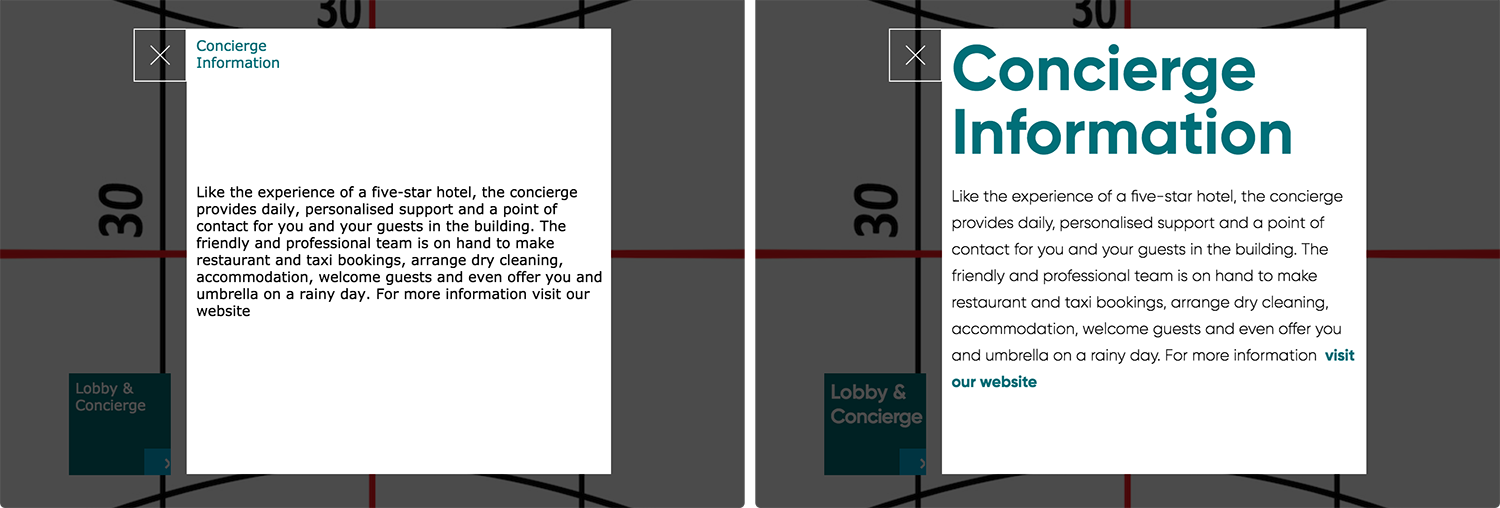
When developing virtual tours for clients there is often the need to create unique user interface elements (skins) that on many occasions may require the use of a custom font.
The best way to ensure consistency across browsers is to use a Local Font file and CSS to style the text. In this tutorial I'm going to style the text on a button and a popup information block using the local font file/css method.
In this tutorial we will…
Modify a CSS file to style both the text for the button name, the header and body in a popup window
Update the skin to style the text & add .woff fonts to the Output folder
Link to the CSS file to the HTML5 template
Fine tune the line spacing, kerning and add a website link
Note: this tutorial is designed for Pano2VR Release versions 6+. In the Beta versions the options have changed.
In Pano2VR 6.0 you have the CSS in the HTML page so there you need to use the disable fonts in the template.Pano2VR 6.1 the CSS for the fonts are in the skin editor. To this end, there is no disable fonts checkbox in the Template anymore.
Universal Floating Nadir Logo
This tutorial follows on from the Floating Nadir Logo tutorial and provides a step-by-step workflow to apply the floating nadir logo on every node of a virtual tour using the Master Node option in Pano2VR. . In this tutorial we will;
Adding two additional panoramas to the project
Opening the Master Node
Copy and pasting the Point Hotspot to the Master Node
Publishing the project
Floating Nadir Logo
Post 360˚ Panoramas to Twitter for V6
Polygon Hotspots & Information Popups
Using Point Hotspots to deliver contextual content is a great way to make your Virtual Reality tours more interactive and provide an enhanced experience for the viewer. However a point hotspot is as its name implies a ‘point’ in some projects you may want to highlight and identify particular objects by their shape.
This tutorial shows how to use a single skin component to show a polygon hotspot description in a information popup box when any of the polygon hotspots are clicked.
Background Sound Playing across Specific Nodes - Volume Control & Pause
This tutorial expands on the ‘Background Sound Playing across Specific Nodes’ tutorial and adds a volume control component and a pause button.
Note: In order to follow this tutorial you must complete the original tutorial that is linked above
The tutorial contains step-by-step instructions on how to add a volume component to your library and then use it in a skin. We also look at extracting some elements from a Pano2VR skin and adding them as a component to be used as a pause/play button that will pause the sound in a node with the ‘sound’ tag and restart it again.
Background Sound Playing across Specific Nodes
This tutorial has been developed in response to a post on the Pano2VR forum in which the question, “I would like to insert a sound only to some panoramas in sequence. The other panoramas of the tour must be without sound. The sound should not start again with each panorama of the sequence but continue from the previous one” was asked.
The tutorial contains step-by-step instructions on how to add a ‘Background’ sound and have it play across defined nodes of the tour.
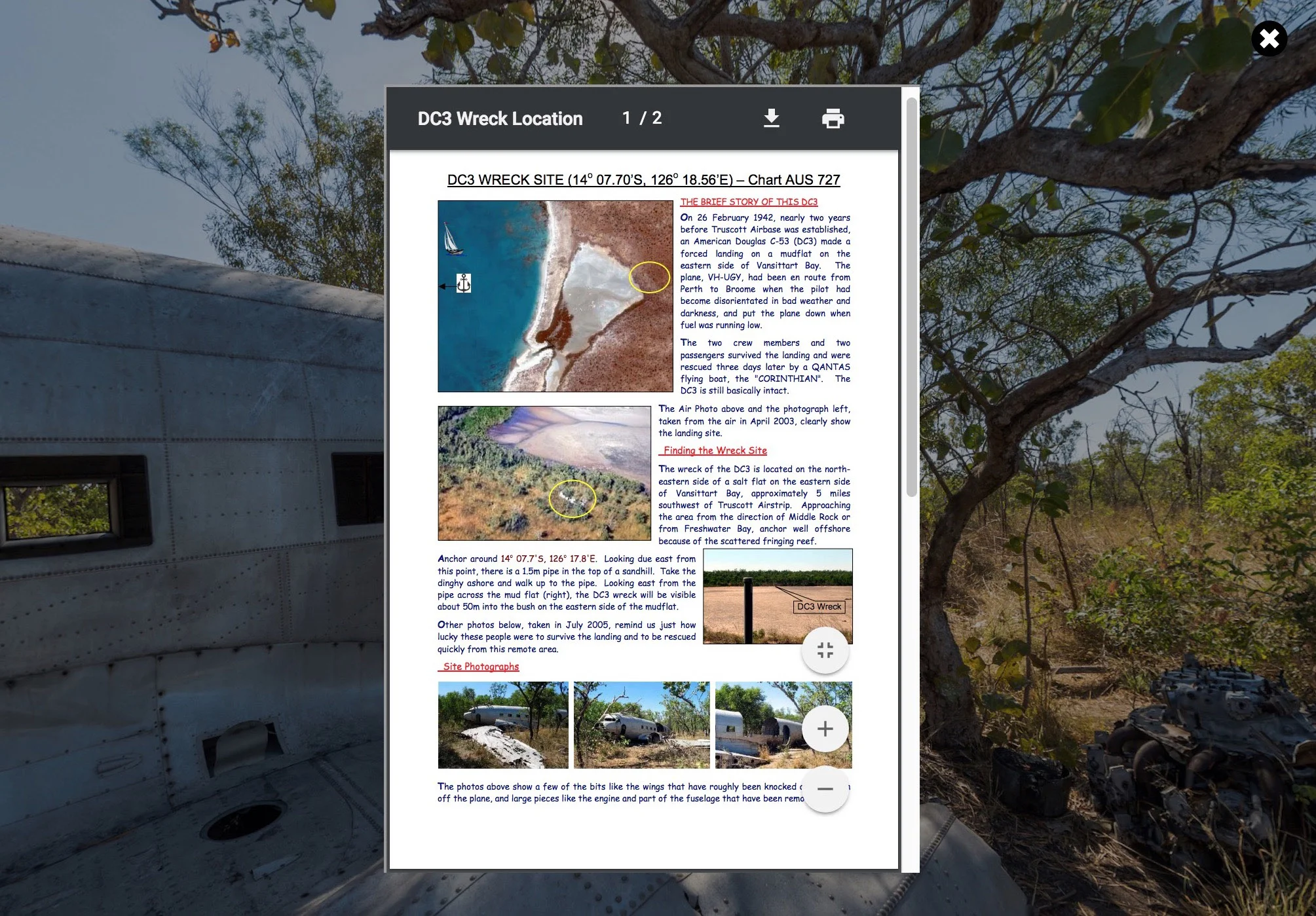
Auto Resizing PDF in a Hotspot Popup
This tutorial provides a step-by-step instructions on how to open an Adobe PDF file into a hotspot template and have the popup and PDF scale as the browser window is resized.
Update 15/10/18: A solution for this issue has been provided at the end of the tutorial
Update 14/05/20: I’ve added additional information regarding use on Mobile Devices at the end of the tutorial under the section; Addendum #1: Displaying the PDF on Mobile Devices
Circular Hotspot Buttons
P2VR Fullscreen Image Viewer - Multiple Images & Thumbnails - Part 1
This two part tutorial starts where P2VR Fullscreen Image Viewer - Part 2 finished and expands on the single image viewer by showing how to create and manage a viewer that has multiple images contained within it and displays preview thumbnails of the images associated with each hotspot.
This is Part 1 of the tutorial we will modify the 'Flat Image' Pano2VR project from the ‘P2VR Fullscreen Image Viewer’ tutorial by;
importing two additional flat images
setting uniform viewing parameters across the nodes
enabling Direct Node Access
creating the thumbnail images
generating the 'flat image' output
Part 2 of the tutorial can be found here
P2VR Fullscreen Image Viewer - Multiple Images & Thumbnails - Part 2
This two part tutorial starts where P2VR Fullscreen Image Viewer - Part 2 finished and expands on the single image viewer by showing how to create and manage a viewer that has multiple images contained within it and displays preview thumbnails of the images associated with each hotspot.
This is Part 2 of the tutorial in which we modify the 'Equirectangular Image' Pano2VR project from the ‘P2VR Fullscreen Image Viewer’ tutorial by;
add additional 'point hotspots' for the new images
add additional content to the 'Properties - Point Hotspot'
create a 'hotspot_preview' folder and elements in the skin that manages the thumbnail and title previews
change the hotspot icon
generate the 'equirectangular' output and review the final project
fix a preview thumbnail issue in the Firefox browse
Part 1 of the tutorial can be found here
P2VR Fullscreen Image Viewer - Part 1
This, two part tutorial, shows how to create a project that contains an image viewer that can be opened via a hotspot. The image viewer zooms to fullscreen and displays an image that can be zoomed in to and out of and panned around using both mouse and touch.
No external applications are required and the whole tutorial is built using the tools within Pano2VR. There is a downloadable ‘Tutorial Folder’ with sample equirectangular and flat images and a skin component to provide the zoom and pan tools for the image.
A shout-out to Jaroslav Pindora's solution to the hotspot image zoom and pan using just the tools within Pano2VR.
P2VR Fullscreen Image Viewer - Part 2
This, two part tutorial, shows how to create a project that contains an image viewer that can be opened via a hotspot. The image viewer zooms to fullscreen and displays an image that can be zoomed in to and out of and panned around using both mouse and touch.
No external applications are required and the whole tutorial is built using the tools within Pano2VR. There is a downloadable ‘Tutorial Folder’ with sample equirectangular and flat images and a skin component to provide the zoom and pan tools for the image.
A shout-out to Jaroslav Pindora (P2VR Facebook User Group) solution to the hotspot image zoom and pan using just the tools within Pano2VR.
Hotspot Fullscreen Image with Zoom and Pan
Pano2VR provides a very comprehensive Skin Editor that allows a user to create unique interactive environments. However there may be occasions when you need to integrate external applications to extend the program and there are a number of ways to do so in Pano2VR.
This tutorial show you how to create a point hotspot and integrate a third party image viewer application that opens an image that fills the current screen. Once the image has opened the user can then zoom in and out of the image and pan around it using a mouse or by touch on a mobile device.
Zooming Popup with Reveal Text Overlay - Part 1
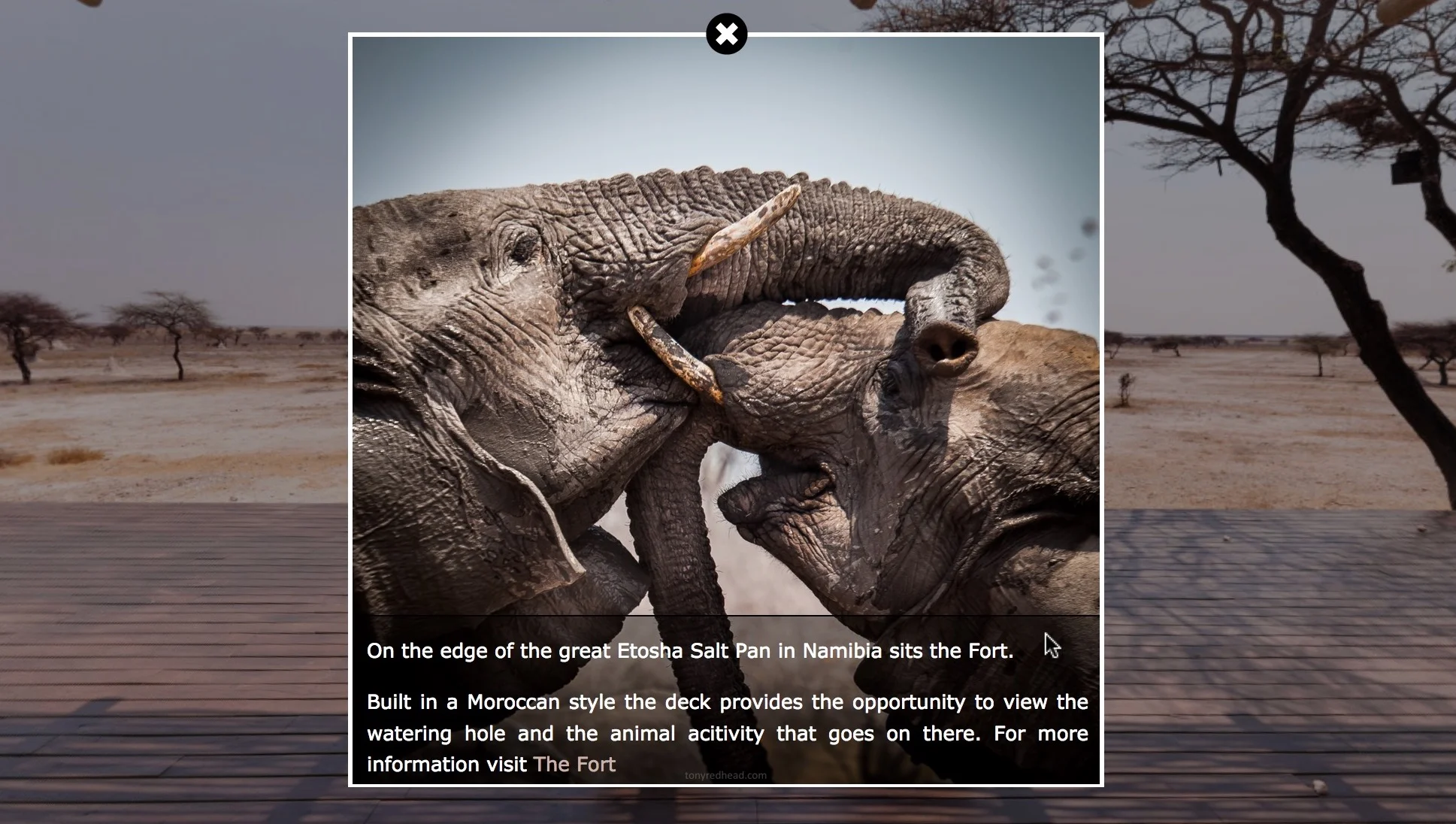
Using Point Hotspots to deliver contextual content is a great way to make your Virtual Reality tours more interactive and provide an enhanced experience for the viewer. One of the most effective options is to zoom up an image based on a mouse click. This option can highlight and provide information on specific areas of your panorama. This long form step-by-step tutorial takes you through building the image file, adding in zoom capabilities and a mouse over text reveal. This tutorial is presented in two parts, this is Part 1